Microsoft Teams
Overview
Integrating Microsoft Teams with Enov8 allows you to send real-time notifications directly to a Teams channel whenever specific events such as create or update alerts occur within Enov8. This integration ensures that your team stays informed and up-to-date on critical activities, reducing the need to manually communicate updates.
The integration utilizes Enov8 Webhooks & Microsoft Team Workflows to automatically push notifications to a designated channel in Microsoft Teams, ensuring smooth collaboration and enhanced operational efficiency.
Prerequisites
Before integrating Microsoft Teams with the Enov8 platform, ensure the following prerequisites are met:
Microsoft Team Workflow Access and Permissions
- Ensure you have administrative access to setup a workflow in Microsoft Teams.
- Microsoft Teams Channel details which will recieve the notifications.
- Verify that Microsoft Teams is accessible via the internet or the necessary network configurations are in place for communication with Enov8.
Enov8 Access and Permissions
- Ensure you have the necessary permissions within Enov8 to configure integrations in Orchestration Management Module and access to Add-On section.
- Ensure you have access to setup webhooks within Enov8.
Integration Steps
Configure Teams Workflow
-
In your Teams application, open the Workflows app from the left navigation menu.
infoIf you don't see the icon, click the View more apps button (three dots icon).
-
Enter a descriptive title for your flow, such as "Enov8 Notification"
-
Click + New flow in the top right corner.
-
Select + Create from blank.
-
Add the trigger When a Teams webhook request is received to your flow.
-
In the Who can trigger the flow? field, select Anyone.
-
Click + New step.
-
Add the action Post card in a chat or channel.
-
In the Post as field, choose User.
-
In the Post in field, select Channel.
-
In the Team field, choose the team that includes your target channel.
-
In the Channel field, select the channel where you want to post notifications.
-
In the Adaptive Card field, use the expression
triggerBody(). -
Click Save.
-
Finally, open the trigger When a Teams webhook request is received and copy the HTTP POST URL value, as you'll need this for the next step.
Add Notification Listener
The next step in this integration is to add the Microsoft Team Notification feature in Enov8 which will send alerts to Microsoft Team channel.
To add, navigate to Orchestration Management >> Administration >> AddOns
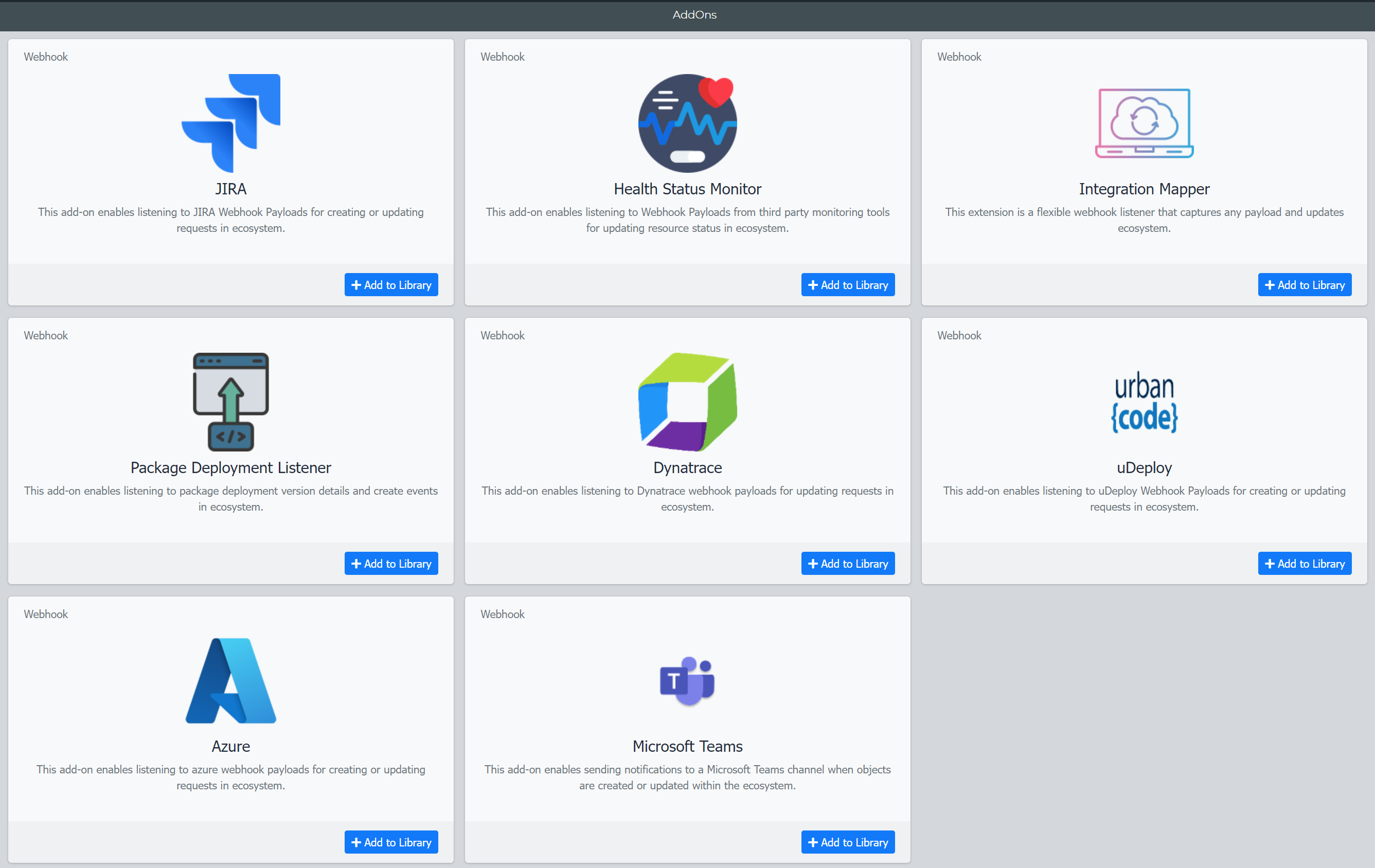
Click on "+ Add to library" on the Microsoft Team Panel.

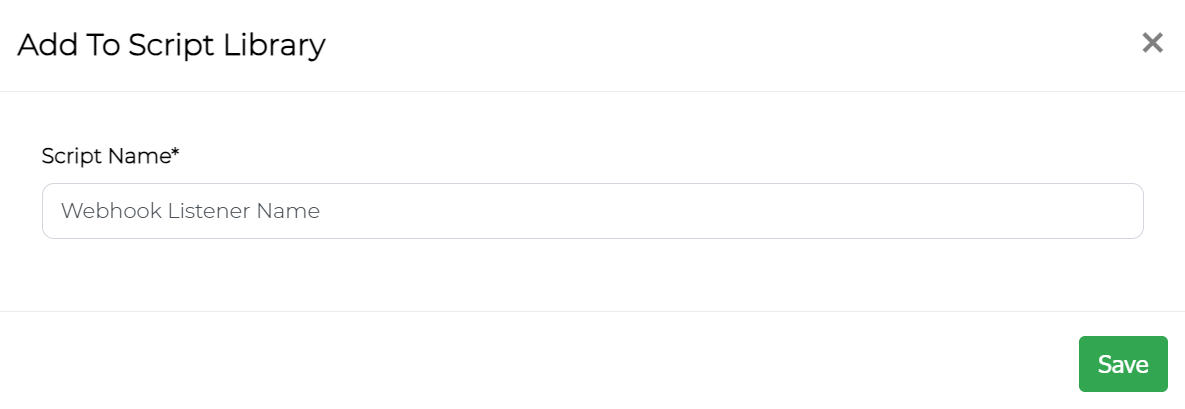
Provide a user friendly name for your listener and click "Save". This will add the webhook listener to Orchestration Manager Script Listing.
Now navigate to Orchestration Management >> Scripts >> Manage Scripts. In this section, you will see a list of all the scripts that have been configured in ecosystem. Locate the webhook listener script added by you in the previous step and make a note of the Script ID.

Configure Listener Mapping (config.json)
Open the File Explorer for the script and edit config.json.
Each Enov8 class (system, project, environment event, etc.) has a dedicated block with its own Teams webhook URL and field mappings.
Example (systeminstance)
{
  "systeminstance": {
    "webhook_url": "https://<YOUR-TEAMS-WEBHOOK-URL>",
    "card_config": {
      "title": "Resource Name",
      "titleColorMapping": {
        "field": "Status",
        "mappings": {
          "PlannedOutage": "Attention",
          "UnplannedOutage": "Attention",
          "Decommissioned": "Attention",
          "InOperation": "Good",
          "Provisioning": "Warning"
        },
        "defaultColor": "Attention"
      },
      "facts": {
        "Status": "Status",
        "Version": "Version"
      }
    }
  }
}
Tip: Paste the Teams HTTP POST URL into the webhook_url field for the corresponding class.
| Field | Description |
|---|---|
| title | The "title" field defines the title of your notification card in Microsoft Teams. In this example, the card will display the Resource Name value as the title. |
| titleColorMapping | The "titleColorMapping" field allows you to customize the color of the card's title based on the resource's status. The field that determines the color is "Status". The available colors in Microsoft Teams for title color mapping are:
|
| defaultColor | The fallback color to use when the status doesn’t match any of the defined mappings. Example: "defaultColor": "Attention". |
| facts | The "facts" section defines which key-value pairs (labels and values) will appear as details below the title in the Adaptive Card. Each fact displays a label on the left and a value from the Enov8 payload on the right. Example:"facts": { "Status": "Status", "Version": "Version" }This means:
Status: InOperation Version: 17.1 |
Configuring Enov8 Webhook for Alerts
In the final step of this integration, you need to configure webhook alerts within the Enov8 platform.
- Go to Configuration Management → System Administration → Webhook Management.
- Click Add and fill out the details:
| Field | Description |
|---|---|
| Summary | A user-friendly name to identify the webhook. |
| Class | The class that triggers it (e.g., SystemInstance). |
| Action Type | Defines the trigger condition — for example, objectCreate, ObjectUpdate or PropertyUpdate (runs when a specific property changes). |
| Properties | The specific property within the class that will trigger this webhook when updated (e.g., Status, Version). |
| Script | The internal Enov8 script to execute (e.g., Teams Integration). The script reads the payload, builds the Adaptive Card, and sends the notification to Microsoft Teams. |
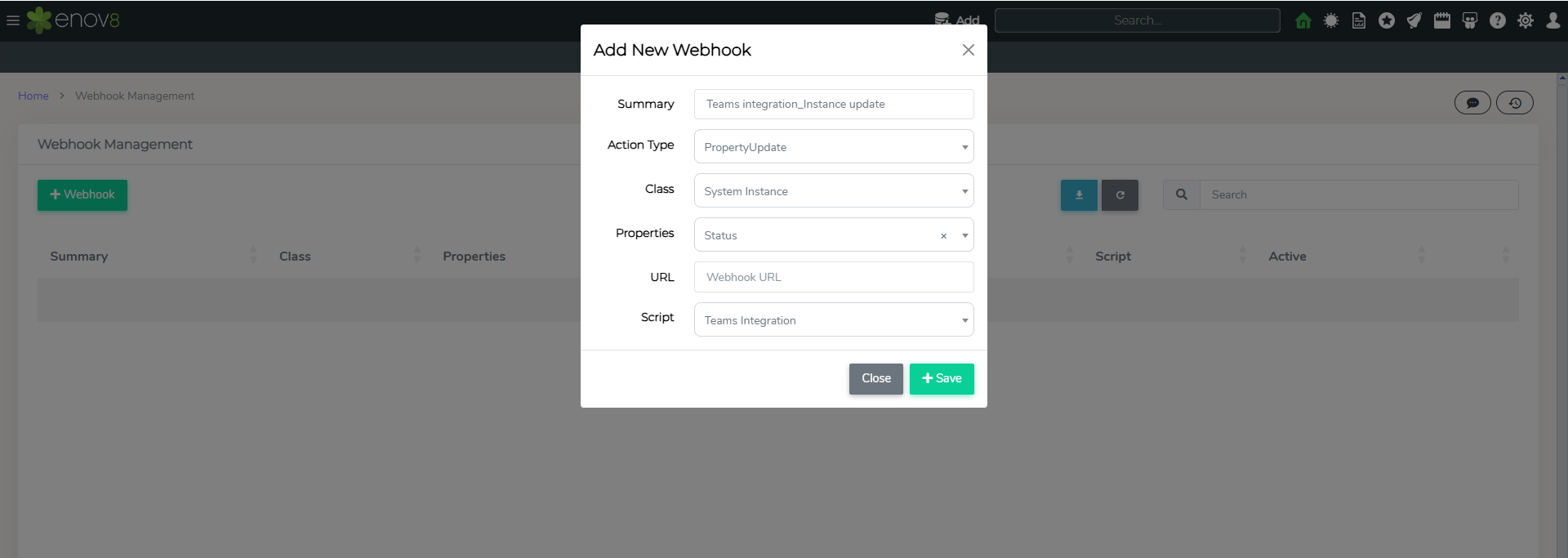
- Save the webhook.
Whenever the class and action match, Enov8 sends the payload to the Teams integration script.
Testing the Integration:
To test the teams integration, create or update the object as per your webhook configuration. Ensure that you receive the corresponding alert in Microsoft Teams.