Configure TDM & Workerbee Agents
This guide covers connecting TDM to your Workerbee agents.
Ensure that at least one TDM Workerbee agent is installed on your infrastructure.
Step 1: Configure TDM System
To access TDM system configuration settings, navigate to Settings > System Configuration > System.
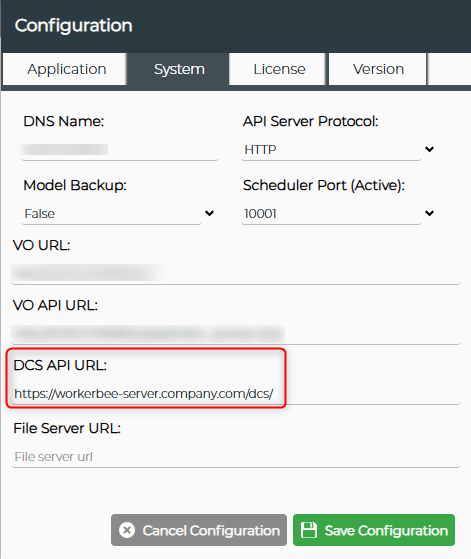
Enter the URL of your TDM Workerbee agent in the DCS API URL field (mandatory).
Format: http(s)://domain_name_or_IP/dcs/
Examples:
https://workerbee-server.company.com/dcs/http://10.0.1.50/dcs/
Complete any other required fields, then click Save Configuration.
Step 2: Add Additional Workerbee Agents (Optional)
TDM System must already be configured with your first Workerbee.
TDM WorkerBee agents enable load balancing, secure multi-domain connectivity, and built-in high availability, ensuring TDM runs efficiently, scales smoothly, and remains resilient against failures.
To configure a Workerbee agent in the platform, go to Data Management > Administration > Data Agent Management. This will open the Manage Agents screen.
To create a new agent, click Add. The Agent Details form will then be displayed.
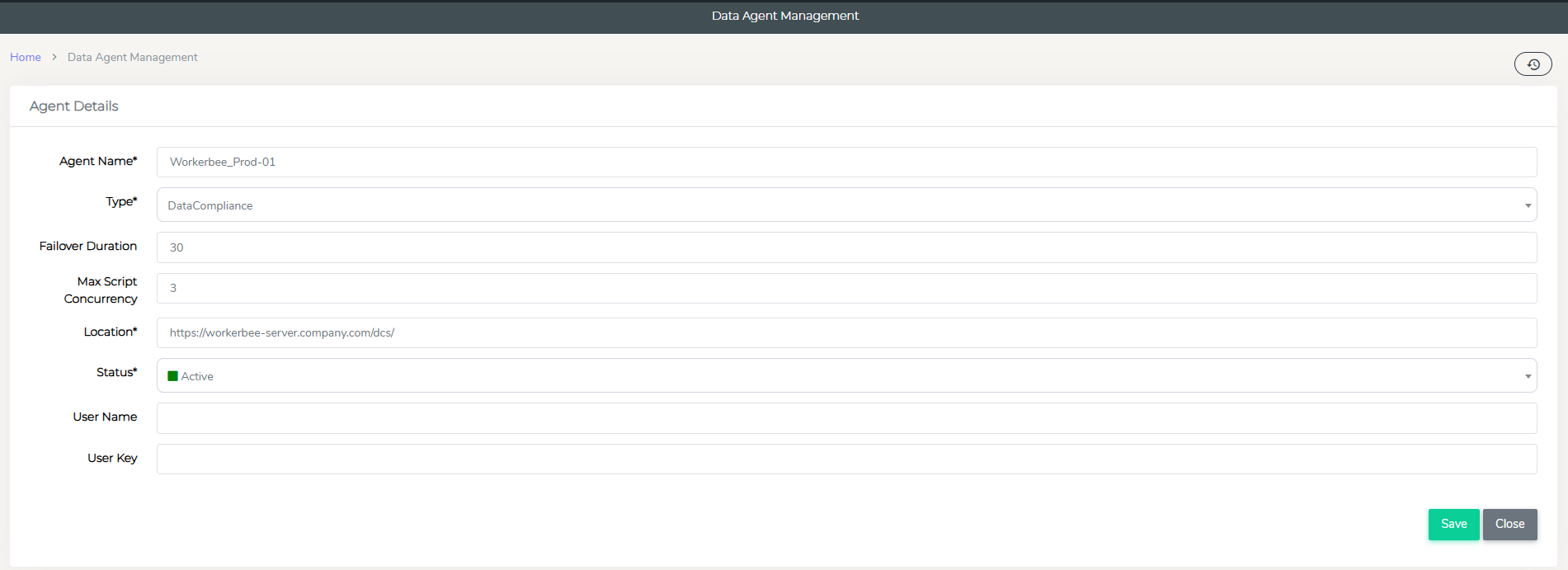
| Field | Description |
|---|---|
| Agent Name | Unique identifier for the workerbee agent. (e.g - "Workerbee_Prod-01") |
| Type | Select the agent type from the dropdown menu. |
| Failover Duration | Time (in seconds) to wait before routing work to another agent. |
| Max Script Concurrency | Maximum number of scripts that can run concurrently. Adjust based on server specification. |
| Location | TDM Workerbee Agent's Server location. |
| Status | Agent Status (Active/Inactive). |
| User Name | Username for authentication, if applicable. |
| User Key | Authentication key, if required. |
Once all fields are entered click Save to add the new agent. Or click Close to exit without saving.