enov8 vME iSCSI Connector (SQL Server)
This connector integrates Microsoft SQL Server with enov8 vME iSCSI storage. It moves databases from local disks onto vME iSCSI LUNs, then mounts vME-created clones on other servers for dev/test/reporting.
Each script includes built-in safety checks, confirmation prompts, and step-by-step guidance. Review the Operational Notes section before running on shared or production servers.
Use Case Diagram
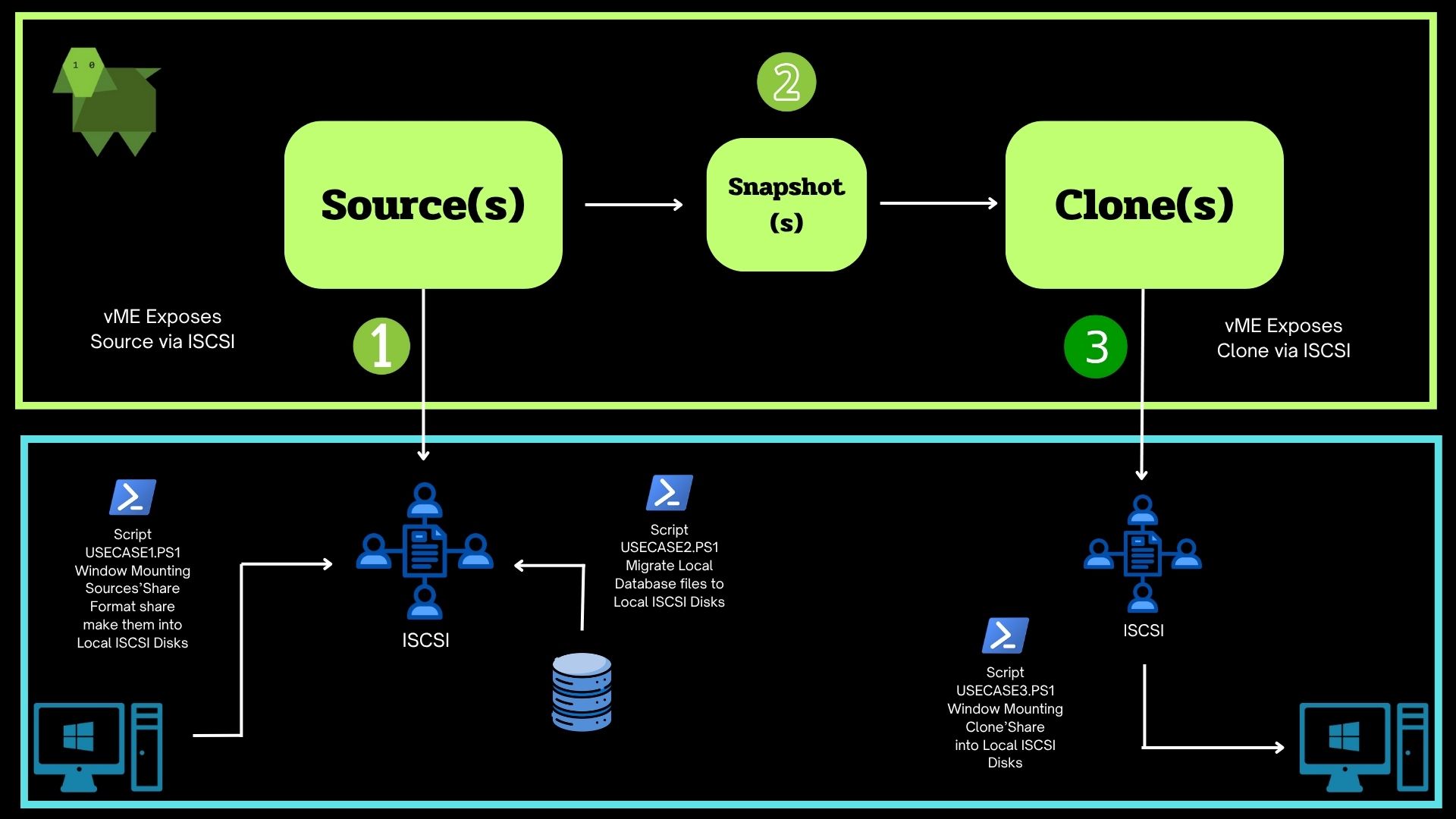
Download the toolkit: vme-db-connector-toolkit-1.1.1.zip
Overview - What Will Happen
This workflow attaches and mounts vME iSCSI LUNs. Snapshot and clone creation are performed in vME.
Phase 1 - Source Prep
- Connects the Windows iSCSI initiator to your vME targets.
- Brings the new empty LUNs online.
- Initializes and formats the selected LUNs as NTFS with 64K allocation units.
- Assigns drive letters and labels them
SQL_DataandSQL_Log.
Phase 2 - Source Migrate
- Creates folders on the iSCSI drives:
X:\MSSQL\Data,Y:\MSSQL\Logs, andX:\MSSQL\Backups. - Grants SQL Server service account permissions on those folders.
- Lists user databases and lets you select which to migrate.
- Performs backup + restore into the iSCSI location, mapping database files to the target data/log paths.
- Creates new databases with the prefix
ISCSI_. - Restarts the SQL Server service.
Phase 3 - Clone Mount
- Connects to the cloned iSCSI target(s).
- Brings iSCSI disks online without formatting.
- Assigns drive letters to the cloned volumes.
- Attaches MDF/LDF files using
CREATE DATABASE ... FOR ATTACH.
Phase 4 - Clone Unmount
- Detaches
ISCSI_databases from SQL Server. - Offlines iSCSI disks and disconnects sessions.
- Full iSCSI cleanup (removes persistent targets).
Prerequisites
Windows / SQL
- Windows Server 2019 and 2022.
- PowerShell 5.1+ as Administrator.
- SQL Server 2017+.
sqlcmdavailable in PATH.- Windows authentication with sysadmin privileges.
vME / Network
- enov8 vME appliance with iSCSI enabled.
- iSCSI targets and LUNs created in vME before running the scripts.
- Complete source setup in vME first: iSCSI Source Form Instructions.
- For SQL Server, follow that Microweb form flow twice to create one Data source and one Log source.
- Network access to port 3260 between servers and storage.
Safety Notes
- Phase 1 can format disks. Only select new empty LUNs.
- Phase 2 creates new databases with the
ISCSI_prefix. - Phase 2 restarts SQL Server.
- Phase 4 can clear iSCSI configuration.
Operational Notes
These scripts are designed for dedicated servers where iSCSI is used exclusively for this SQL migration/cloning workflow. On multi-purpose iSCSI servers, review the notes below to understand which operations have server-wide effects.
ISCSI_USECASE1.PS1 (Prepare LUNs)
| Consideration | Details |
|---|---|
| Disk format | If a selected disk already has data, the script will format it with only one Y/N confirmation. There is no second "are you sure?" prompt. Always double-check disk numbers before confirming. |
| Portal cleanup is global | Choosing Y to "Clear old portals" will disconnect all existing iSCSI sessions on the server, not just stale ones. Do not use this option if the server has other active iSCSI workloads. |
ISCSI_USECASE2.PS1 (Migrate Data)
| Consideration | Details |
|---|---|
| SQL Server force restart | After migration, the script calls Restart-Service -Force which terminates SQL Server and all dependent services (SQL Agent, SSIS, SSRS, etc.) without waiting for active connections to drain. Schedule this during a maintenance window. |
| Overwrites existing databases | If a database named ISCSI_<name> already exists, RESTORE ... WITH REPLACE will overwrite it. Do not re-run this script unless you intend to replace previously migrated databases. |
| Backup file overwrite | The BACKUP ... WITH FORMAT option overwrites any existing backup file at the same path. |
ISCSI_USECASE3_UNMOUNT.PS1 (Cleanup Clone)
| Consideration | Details |
|---|---|
| All iSCSI disks taken offline | The full cleanup step takes all iSCSI disks offline on the server, not just the ones mounted by this workflow. |
| All persistent targets removed | The full cleanup runs iscsicli RemovePersistentTargets, which removes all persistent iSCSI targets on the server. After a reboot, other iSCSI-dependent services will need to be reconnected. |
| Global mount point cleanup | mountvol /R is executed, which removes all orphaned volume mount points system-wide, not just those created by this workflow. |
| Database detach skips integrity checks | sp_detach_db is called with @skipchecks = 'true', which skips UPDATE STATISTICS and integrity verification before detaching. |
General
| Consideration | Details |
|---|---|
| No file logging | Errors are only displayed on screen and are not persisted to a log file. Take note of or screenshot any errors during execution. |
| No rollback | If a migration fails midway (e.g., after 2 of 5 databases), there is no automatic rollback. Backup files remain on disk and you must manually retry or clean up. |
Note: These scripts perform administrative actions including disk formatting, database backup/restore, and iSCSI configuration changes. Always run them in a PowerShell session with Administrator privileges and confirm each prompt carefully.
Roles - Source vs Clone Server
Source Server (Primary SQL Server)
Run ISCSI_USECASE1.ps1 (prep LUNs) and ISCSI_USECASE2.ps1 (migrate databases).
Clone Server (Dev / Test / Reporting)
Run ISCSI_USECASE3.ps1 (attach clone) and ISCSI_USECASE3_UNMOUNT.ps1 (detach + cleanup).
Interactive Walkthrough
Open PowerShell as Administrator on each server before running any script.
Phase 1 — Prepare LUNs (Source Server)
On the source server, run .\ISCSI_USECASE1.ps1. This script connects to your storage appliance via iSCSI, brings new (empty) LUNs online, and formats them as NTFS with the 64K allocation unit size recommended for SQL Server.
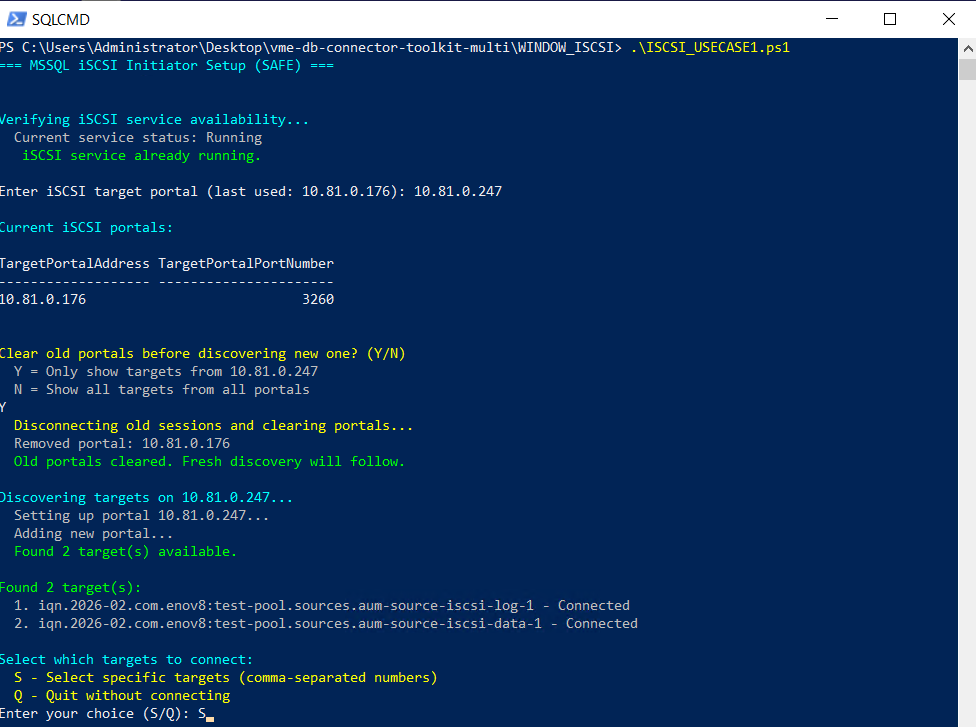
Step 1: Enter the vME Portal IP Address
The script first verifies it is running as Administrator, then checks that the MSiSCSI service (Windows iSCSI Initiator) is running. If the service is stopped, it starts it automatically and sets it to start on boot.
Next, it prompts for the vME portal IP address — this is the IP of your vME appliance. The script remembers the last portal you used in %USERPROFILE%\.iscsi_portal.txt, so you can press Enter to reuse it.
You will then be asked whether to clear old portals:
- Y = Disconnect sessions from portals other than the one you just entered, then remove those portals. This gives you a clean slate when switching to a new storage IP.
- N = Keep all existing portal connections alongside the new one.
After the vME portal is configured, the script runs target discovery (Get-IscsiTarget) to find all available IQNs. If automatic discovery fails, you can enter an IQN manually.
Note — Clear old portals disconnects other sessions: Choosing Y will disconnect active iSCSI sessions from portals other than the one you just entered. Only use this option on dedicated servers or when you are certain no other iSCSI workloads are active.
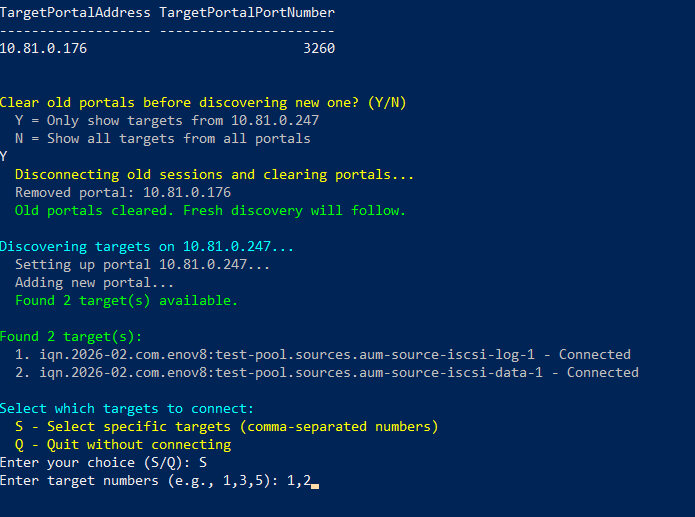
Step 2: Select iSCSI Targets to Connect
The script lists all discovered iSCSI targets with their IQN (iSCSI Qualified Name) and current connection status. You select which targets to connect by entering their numbers (comma-separated, e.g., 1,2).
For each selected target, the script calls Connect-IscsiTarget with -IsPersistent $true, meaning the connection will survive reboots — Windows will automatically reconnect at startup. If CHAP authentication is configured (via config.json or environment variables), the script applies one-way or mutual CHAP credentials during the connection.
Targets that are already connected are skipped. After all connections are established, the script waits up to 10 seconds for the sessions to register and displays the active session list.
Note — Persistent connections survive reboots: Because
-IsPersistent $trueis used, these connections will automatically re-establish after every server restart. When decommissioning, runISCSI_USECASE3_UNMOUNT.PS1or manually remove persistent targets to avoid stale reconnection attempts.Note — CHAP credentials passed via environment variables: If using the non-interactive wrapper (
Run-IscsiWorkflow.ps1), CHAP passwords are passed through process-scoped environment variables. These are not visible to other users but may appear in process dumps or transcript logs.
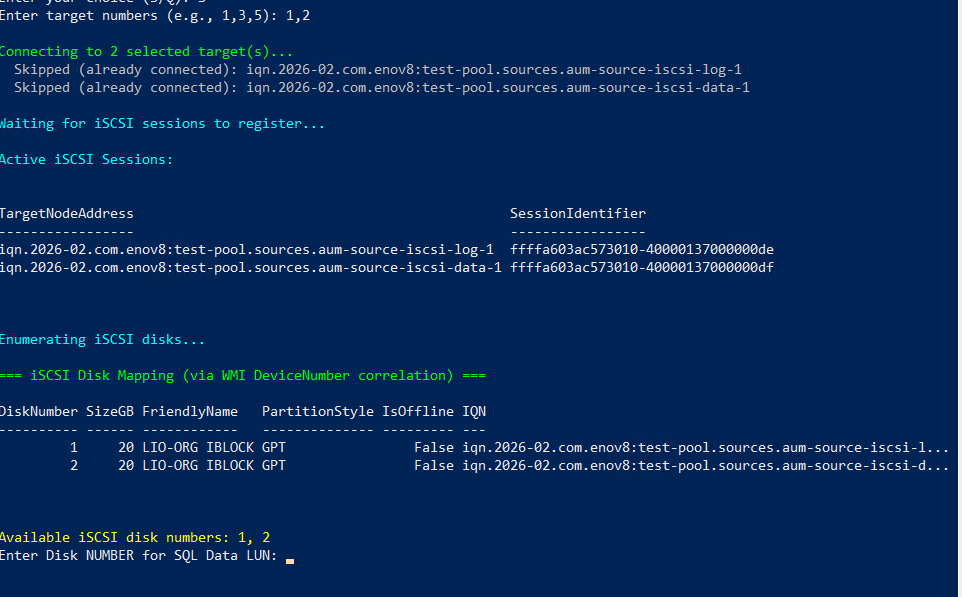
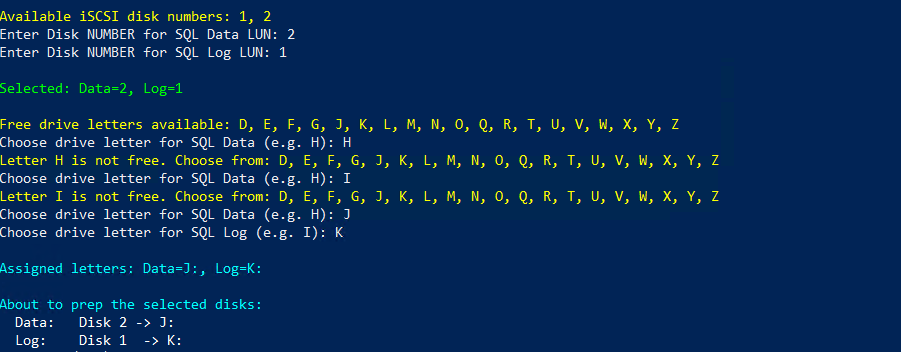
Step 3: Assign Disks for SQL Data and Log
The script runs a diskpart rescan to detect newly connected LUNs, then enumerates all disks with BusType = iSCSI. For each iSCSI disk, it queries WMI (MSiSCSIInitiator_SessionClass) to map the disk number back to its IQN, then displays a table with:
- DiskNumber — Windows disk number
- SizeGB — Capacity of the LUN
- PartitionStyle —
RAW(uninitialized) orGPT/MBR - IsOffline — Whether the disk is currently offline
- IQN — Which iSCSI target this disk belongs to
You must select which disk to use for SQL Data files and which for SQL Log files by entering their disk numbers. The script prevents you from selecting the same disk for both.
Tip: Cross-reference the disk sizes and IQNs shown here with what you configured on your storage appliance to ensure you pick the correct disks.
Note — Selecting the correct disk: The script only allows iSCSI disks (BusType check), so you cannot accidentally format your OS or local disks. If you have multiple iSCSI workloads on the same server, verify the IQN column matches the target you intend to prepare.
Step 4: Assign Drive Letters
The script scans all volumes and partitions to build a list of free drive letters (excluding A, B, C and commonly reserved letters). You choose one letter for the Data disk and one for the Log disk.
The assigned letters determine where the iSCSI volumes will appear in Windows (e.g., J: for Data, K: for Log). These are the drive letters you will reference when running ISCSI_USECASE2.PS1 to migrate databases.
Note — Drive letter conflicts: On busy servers, coordinate drive letter assignments with your team before running this script. If another process claims your chosen letter before the format step completes, the script may fail.
Step 5: Confirm and Format
This is the most critical step. Read carefully before pressing Y.
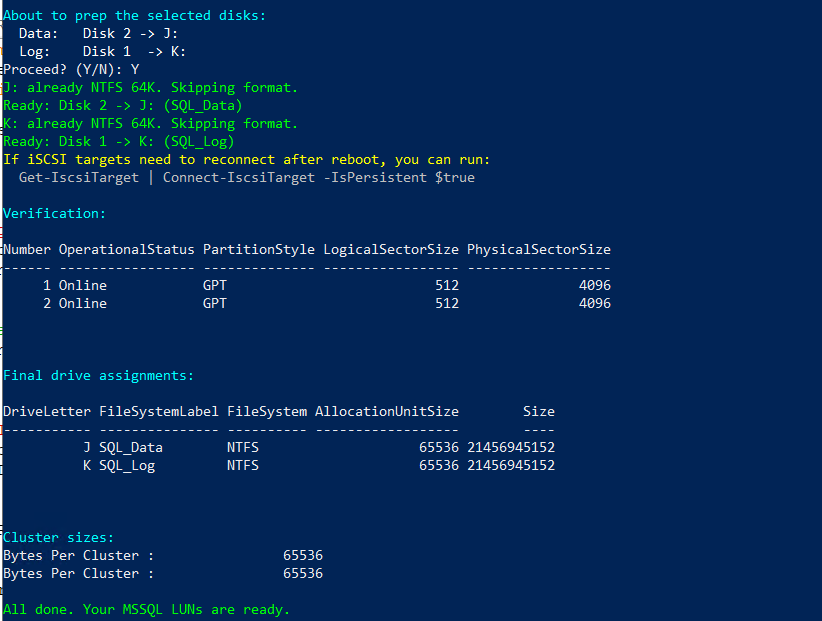
The script displays a summary of what it is about to do:
Data: Disk X -> H:andLog: Disk Y -> I:
Before pressing Y, verify that:
- The disk numbers correspond to your iSCSI LUNs (not your local/OS disks).
- The drive letters are not already assigned to existing volumes.
When you confirm with Y, the script performs the following for each disk:
- Brings the disk online and clears read-only mode.
- Safety check — Verifies
BusTypeisiSCSI. If not, the script refuses to proceed (hard block). - Initializes as GPT — Only if the disk is RAW (unpartitioned). Existing GPT/MBR partitions are preserved.
- Creates a partition using the maximum available space and assigns the chosen drive letter.
- Checks existing filesystem — If the volume is already NTFS with 64K allocation units, formatting is skipped and only the label is updated (
SQL_DataorSQL_Log). - Formats as NTFS 64K — If the disk is unformatted or has a different filesystem/cluster size, the script formats it. If an existing filesystem is detected, an additional confirmation (
Type YES) is required before formatting proceeds.
After formatting, the script runs a final verification showing disk status, partition style, volume details, and cluster size confirmation via fsutil.
Important — Formatting erases the disk: If a selected disk already contains data, formatting will permanently erase it. The script shows a warning and requires you to type
YES(not justY) if it detects an existing filesystem — there is no undo once confirmed.Note — Sector size mismatch: Some iSCSI targets expose LUNs with 4K or 16K logical sector sizes. SQL Server databases backed up from a disk with a different sector size may fail to restore. Check
LogicalSectorSizein the verification table — if it differs from your source disk, investigate compatibility before proceeding.
Phase 2 — Migrate Databases (Source Server)
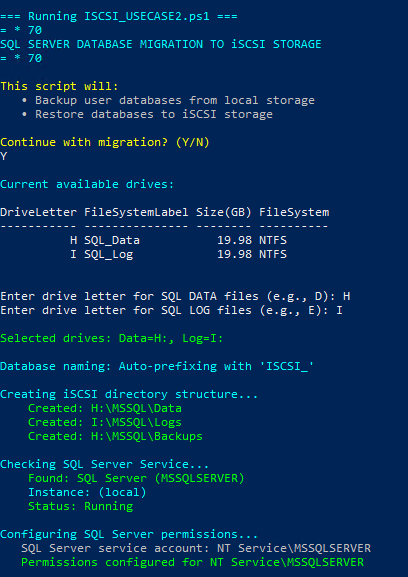
Still on the source server, run .\ISCSI_USECASE2.ps1. This script moves your existing SQL Server databases from local storage to the iSCSI LUNs that were prepared in Phase 1.
Step 1: Select Data and Log Drives
The script first confirms the migration intent, then lists all available drives You must choose:
- A Data drive (where data files are stored)
- A Log drive (where log files are stored)
In this example the iSCSI drives prepared earlier are J: (SQL_Data, ~20 GB) and K: (SQL_Log, ~20 GB).
After selection, the script:
- Creates the directory structure (
J:\MSSQL\Data,K:\MSSQL\Logs,J:\MSSQL\Backups). - Detects the SQL Server instance and confirms it is running.
- Grants the SQL Server service account (
NT Service\MSSQLSERVER) Full Control permissions on those directories so the SQL engine can read/write database files.
Note — Verify drive selection: Cross-reference the drive letters and labels (
SQL_Data,SQL_Log) that you assigned in USECASE1 before proceeding. Selecting a non-iSCSI drive would write database files to local storage instead.
Step 2: Choose Databases to Migrate
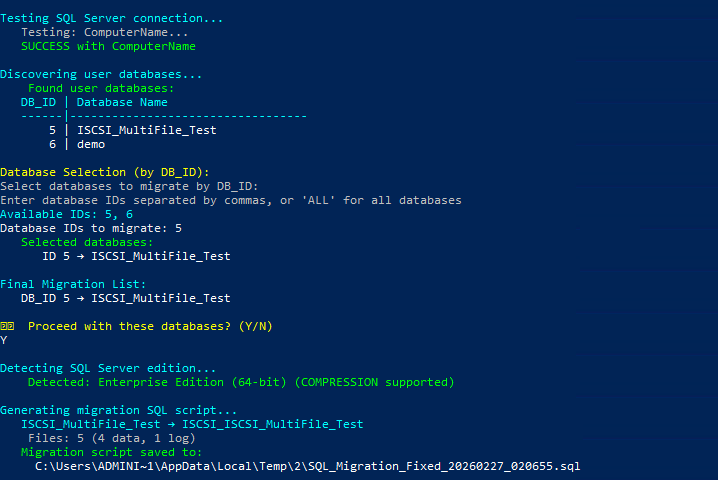
The script connects to SQL Server and discovers all user databases (those with database_id > 4). System databases (master, model, msdb, tempdb) are excluded.
Each database is displayed with its DB_ID and name. You can:
- Enter a single ID (e.g.,
6) or comma-separated IDs (e.g.,5,6,7) - Enter
ALLto migrate every user database
After confirmation, the script:
- Detects the SQL Server edition — Enterprise/Standard editions support backup compression; Express does not.
- Generates a T-SQL migration script and saves it to a temporary file. Each selected database will be migrated as
ISCSI_<original_name>(e.g.,demobecomesISCSI_demo).
Note — Verify database selection: Double-check the database names and IDs before confirming. There is no automatic rollback once the migration starts, so any unwanted migrations would need to be cleaned up manually.
Step 3: Backup and Restore Execution
After a final Y/N confirmation, the generated SQL script runs via sqlcmd. For each database, two operations occur back-to-back:
- Backup — A full backup of the source database is written to the iSCSI backup directory (e.g.,
J:\MSSQL\Backups\demo_Migration.bak). TheWITH FORMAToption overwrites any previous backup file at the same path. On Enterprise/Standard editions,WITH COMPRESSIONis also applied. - Restore — The backup is immediately restored as a new database (
ISCSI_demo) with all data/log files mapped to the selected iSCSI paths (for example, data files underJ:\MSSQL\Data\and log files underK:\MSSQL\Logs\).
Progress updates (10%, 21%, 30% ... 100%) are printed for both the backup and restore phases.
Note — Backup file overwrite:
BACKUP ... WITH FORMAToverwrites any existing.bakfile at the same path.Note — iSCSI connectivity during migration: The backup and restore both write to the iSCSI drives. If the iSCSI session drops mid-operation, the restore may fail and leave a partially written database. Ensure iSCSI connectivity is stable before starting.
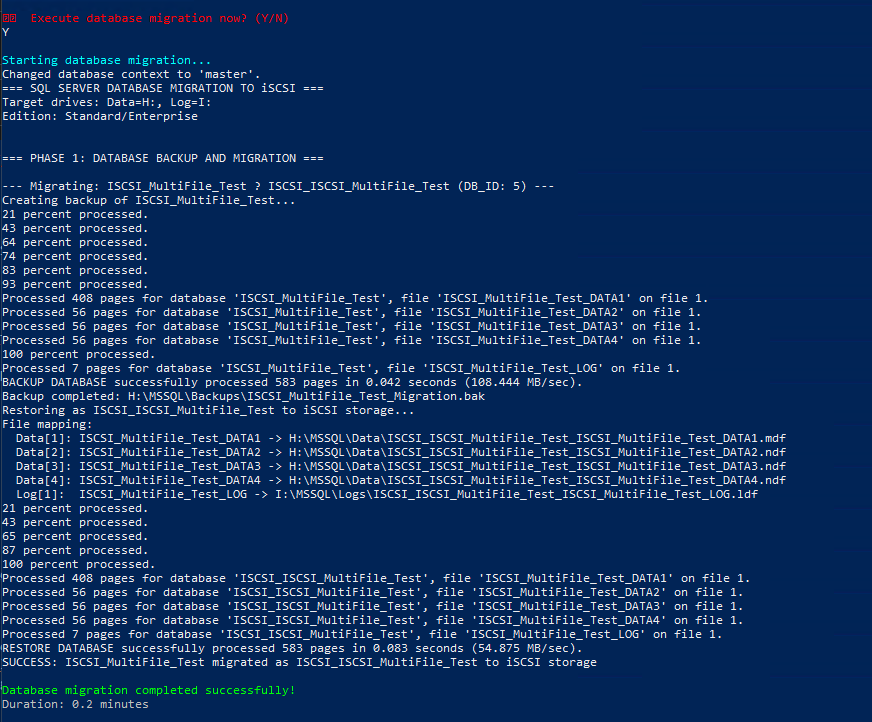
Step 4: Migration Complete and Verification
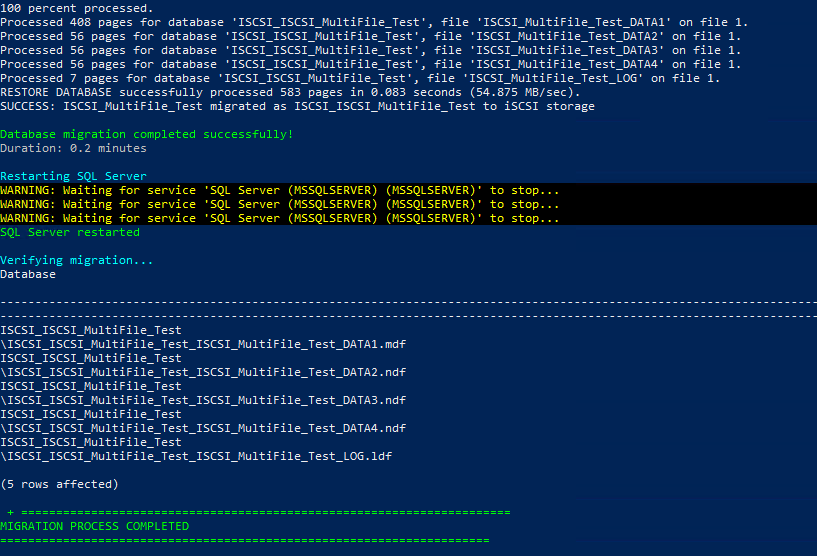
Once all databases have been restored, the script:
- Reports the total duration.
- Restarts SQL Server — The script stops dependent services (SQL Agent, SSRS, etc.) first, then stops the SQL Server service itself, waits, and restarts everything. This ensures SQL Server picks up the new database files cleanly. You will see
WARNING: Waiting for service...messages during the stop phase — this is normal. - Verifies the migration — Queries
sys.databasesandsys.master_filesto confirm the migrated databases are online and their physical files point to the iSCSI drives.
In this example, the verification output shows ISCSI_demo files under the selected iSCSI data and log paths.
Important — SQL Server restart: The restart terminates all active SQL connections, including those from other applications on the same instance. Schedule this migration during a maintenance window.
Note — No automatic rollback: If the migration fails partway through (e.g., after 2 of 5 databases), previously completed migrations remain and the
.bakfiles stay on disk. You can manually retry the failed databases or clean up as needed.
Create Snapshot and Clone (vME)
Before mounting clones on the clone server, create the snapshot and clone in vME. Reference: Microweb documentation.
- Create a snapshot of the source LUN.
- Create a clone from that snapshot.
- Export the clone as a new iSCSI target.
Phase 3 — Mount Clone (Clone Server)
On the clone server, run .\ISCSI_USECASE3.ps1. This script connects to the cloned targets, brings the disks online without formatting, and attaches the existing database files to SQL Server using CREATE DATABASE ... FOR ATTACH.
Step 1: Connect to vME Portal
The script verifies it is running as Administrator, then checks that the MSiSCSI service is running (starts it automatically if needed).
You enter the vME portal IP address — this should be the same vME appliance that exposes your cloned LUNs. The script adds or refreshes the portal and performs target discovery with up to 3 retries if the storage is slow to respond.
Note: This step only queries the vME portal for available targets — no connections or disk changes are made yet.
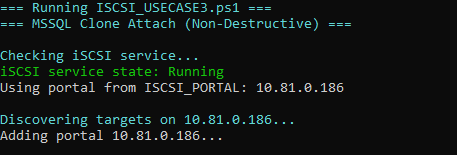
Step 2: Select and Connect iSCSI Targets
The script lists all discovered targets with their IQN and connection status. In this example, four targets are visible:
- Targets 1–2 are the source LUNs (
ash-source-data-1,ash-source-logs-1) — Not Connected - Targets 3–4 are the clone LUNs (
aum-clone-data-1,aum-clone-log-1) — Already Connected
The user selects 3,4 to connect the clone targets. Since they are already connected, the script prints "Already connected" and moves on.
Each connection is made with -IsPersistent $true, so Windows will automatically reconnect to these targets after a reboot. If CHAP authentication is configured, the script applies the credentials during the connection.
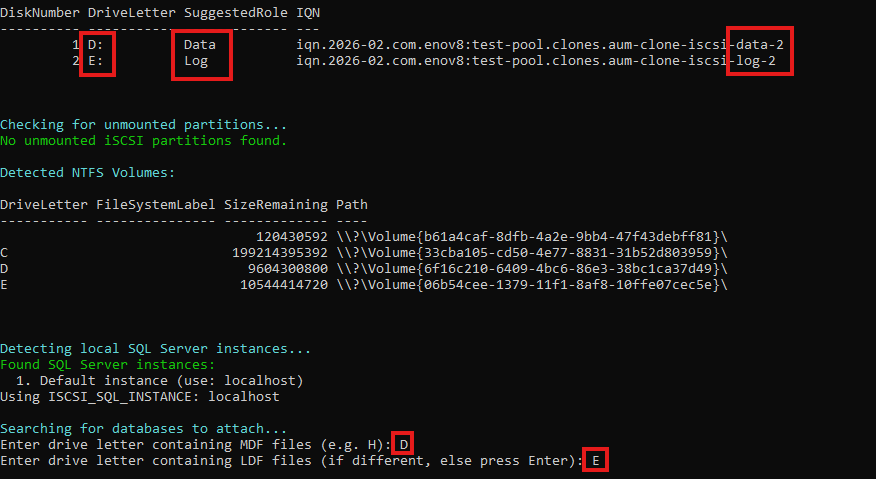
After connecting, the script detects all NTFS volumes currently available. In this example, D: (SQL_Data) and E: (SQL_Log) are the clone volumes that are already mounted from a previous run.
Important — Select clone targets, not source targets: Verify the IQN names correspond to clone targets before connecting. Mounting the source LUNs on a second server while the source is still active could lead to data corruption.
Note — Persistent connections survive reboots: The clone connections will auto-reconnect on every server restart. When you are done with the cloned data, run
ISCSI_USECASE3_UNMOUNT.PS1to remove persistent targets.
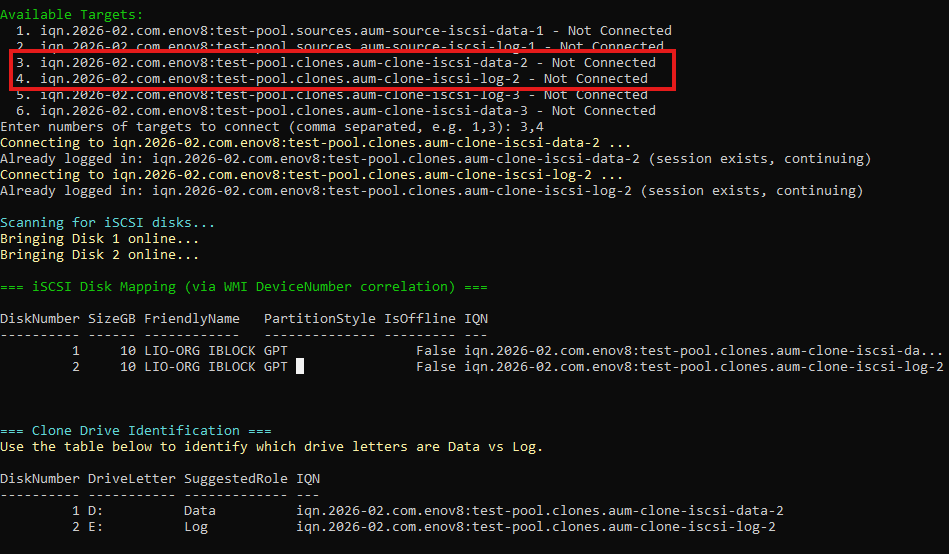
Step 3: Bring Disks Online and Detect Volumes
The script runs diskpart rescan to detect iSCSI disks, then brings each one online without formatting. This is the key difference from USECASE1 — the clone LUNs already contain NTFS filesystems with database files, so no initialization or formatting is performed.
If the clone disks already had drive letters from a previous mount (or because Windows remembered them), the script reports that each volume already has its assigned letter. In this example:
D:→ SQL_Data (~25 GB)E:→ SQL_Log (~25 GB)
If the partitions do not have drive letters (first-time mount on this server), the script prompts you to assign letters manually for each hidden partition.
Note — Drive letter conflict: If the clone LUN's partition previously had a drive letter that is already in use on this server, Windows may fail to assign it. Check for conflicts before proceeding.
Note — Disk signature collision: If the clone was created from a snapshot, the disk signature may be identical to the source. Windows may mark the disk as "Offline" with a "signature collision" error. If this happens, change the signature using
diskpart→select disk X→uniqueid disk ID=<new_value>.
Step 3.2: Grant SQL Server Permissions on Clone Drives
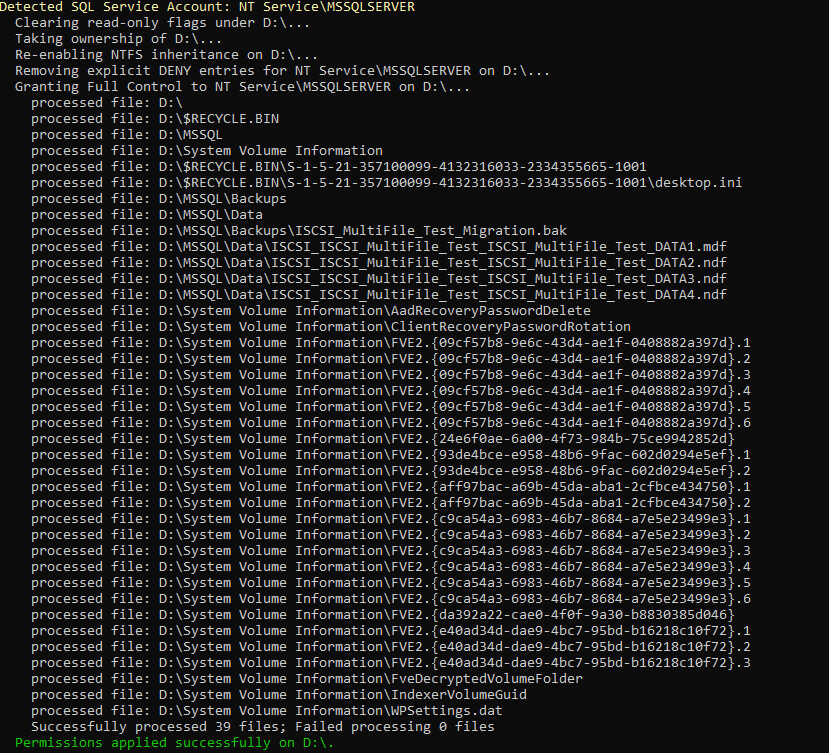
The script detects the SQL Server service account (NT Service\MSSQLSERVER) and grants it Full Control on the clone drive(s). This includes clearing read-only flags, taking ownership, re-enabling NTFS inheritance, removing explicit DENY entries, and then applying Full Control permissions recursively.
In this example, permissions are applied to D:\, processing all files under MSSQL\Data, MSSQL\Backups, and System Volume Information.
Note — Automatic permission grant: The script does configure file permissions on the clone drives at this stage, and again per-directory in Step 5 before each attach. If the permission step fails (e.g., due to locked files), the subsequent
CREATE DATABASE ... FOR ATTACHmay fail with "Access is denied".
Step 4: Attach Databases to SQL Server
The script detects the local SQL Server instance (from the Windows registry), then prompts you for:
- MDF drive letter — The drive containing
.mdf(data) files (e.g.,D) - LDF drive letter — The drive containing
.ldf(log) files (e.g.,E). Press Enter if they are on the same drive as the MDF files.
It then recursively scans those drives for .mdf, .ndf, and .ldf files. After scanning, the script asks you to choose how files should be grouped into databases:
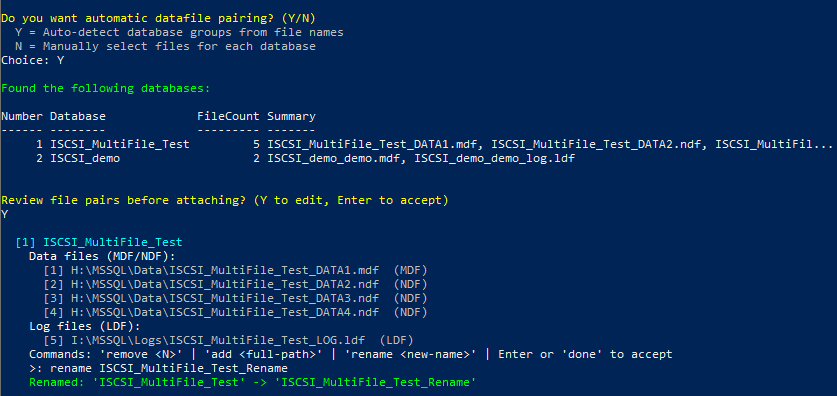
Do you want automatic datafile pairing? (Y/N)
  Y = Auto-detect database groups from file names
  N = Manually select files for each database
- Y (Automatic) — The script groups MDF, NDF, and LDF files by matching filename prefixes. This works well when files follow the standard
ISCSI_<dbname>_<logicalname>.<ext>naming convention from USECASE2. - N (Manual) — You name each database yourself and pick which files belong to it. Use this when file names are non-standard or when automatic grouping produces incorrect results.
In non-interactive mode (config.json), this is controlled by the autoPair field in the attach block.
Note — Verify drive letters: If you enter the wrong drive letter, the script will either find no database files (and exit) or find files from a different volume. Confirm the letters match the clone volumes shown in the previous step.
Automatic Pairing (Y)
When you choose Y, the script automatically groups files by common filename prefix. It sorts MDF files by name length (longest first) to prevent shorter database names from over-claiming files that belong to longer-named databases (e.g., ISCSI_MRU vs ISCSI_MRU_ARCHIVE).
The results are displayed as a numbered summary table. You are then asked whether to review the file pairs before attaching.
If you choose Y at the review prompt, each database is shown with its files grouped into Data files (MDF/NDF) and Log files (LDF). You can edit the file list using these commands:
remove <N>— Remove a file by its number (the last MDF cannot be removed)add <full-path>— Add a file by its full path (validates the file exists and has a valid extension)rename <new-name>— Change the database name (e.g., if the target name already exists on the SQL instance)doneor Enter — Accept the current file list and move to the next database
In this example, two databases were auto-detected: ISCSI_MultiFile_Test (5 files) and ISCSI_demo (2 files). The user reviews the file pairs and removes file #4 (ISCSI_MultiFile_Test_DATA4.ndf) from the first database.
Review File Pairs (Editing in Detail)
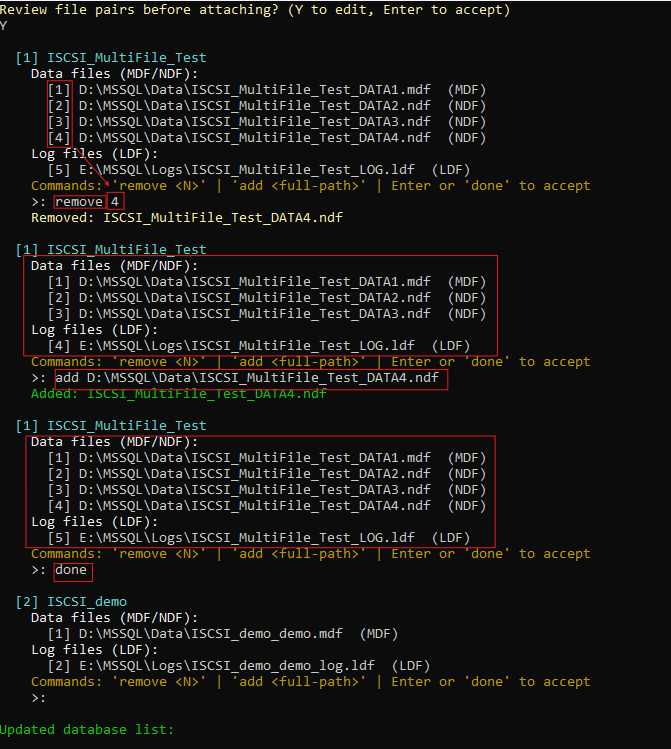
The review file pairs editor loops until you type done or press Enter, allowing multiple edits per database. After completing edits for one database, the script moves to the next. Available commands:
remove <N>— Remove a file by its index numberadd <full-path>— Add a file by its full pathrename <new-name>— Change the database name (useful when a database with the same name already exists on the SQL instance)doneor Enter — Accept and move to the next database
In this example, the user:
- Removes
ISCSI_MultiFile_Test_DATA4.ndfusingremove 4 - Adds it back using
add D:\MSSQL\Data\ISCSI_MultiFile_Test_DATA4.ndf - Types
doneto accept and moves to the next database (ISCSI_demo) - Presses Enter to accept
ISCSI_demoas-is
After all databases are reviewed, the updated summary table is displayed before proceeding to the attach step.
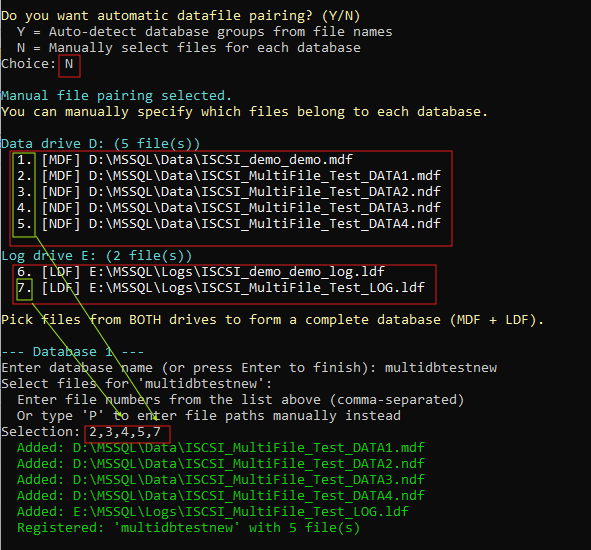
Manual Pairing (N)
When you choose N, the script skips automatic grouping and shows all discovered files grouped by drive:
- Data drive — Lists all MDF and NDF files with their type tags
- Log drive — Lists all LDF files
You then create database groups one at a time:
- Enter a database name (or press Enter to finish)
- Select files by number from the list (comma-separated), or type P to enter full file paths manually
- Repeat for additional databases
In this example, the user creates a database named multidbtest new and selects files 2,3,4,5,7 — four data files and one LDF log file from the log drive.
Tip — When to use manual pairing: Manual pairing is useful when clone files do not follow the standard naming convention, when databases span non-obvious file groupings, or when automatic pairing produces incorrect results.
Step 5: Select Databases and Execute Attach
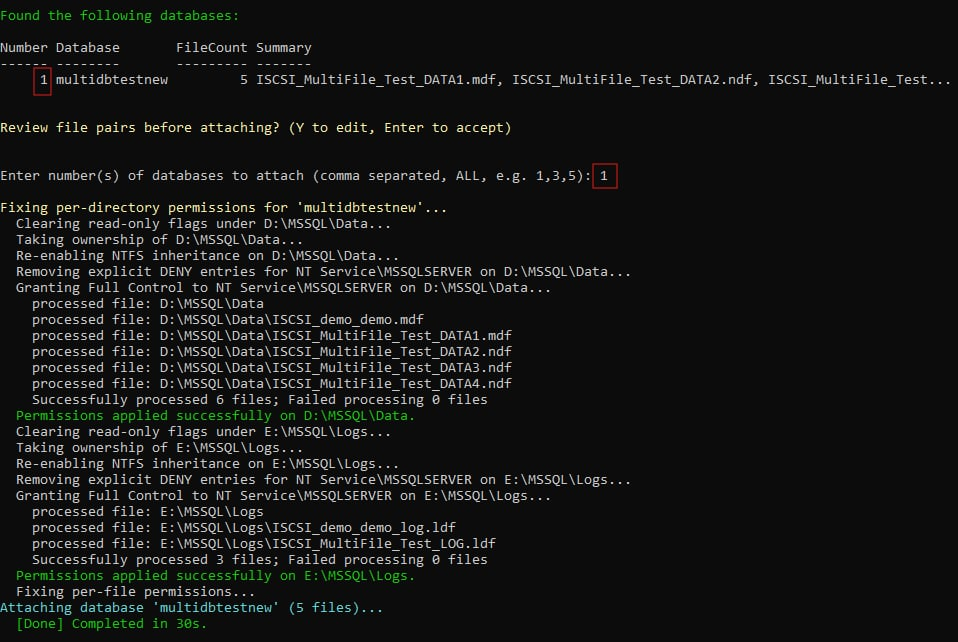
After pairing (automatic or manual) and optional review, you select which databases to attach by entering their numbers (comma-separated, or ALL).
Before attaching each database, the script checks whether a database with the same name already exists on the SQL instance by querying sys.databases. If a collision is detected:
- Interactive mode — You are prompted to choose:
- [S] Skip — Skip this database and move to the next one.
- [R] Rename — Enter a new database name. The script re-checks the new name against the server and loops until you provide a unique name (or press Enter to skip).
- Non-interactive mode (
config.json) — The database is automatically skipped with a warning message.
For each selected database, the script fixes NTFS permissions on the file directories, then runs:
CREATE DATABASE [ISCSI_MultiFile_Test]
ON (FILENAME = N'D:\MSSQL\Data\ISCSI_MultiFile_Test_DATA1.mdf'),
   (FILENAME = N'D:\MSSQL\Data\ISCSI_MultiFile_Test_DATA2.ndf'),
   (FILENAME = N'D:\MSSQL\Data\ISCSI_MultiFile_Test_DATA3.ndf'),
   (FILENAME = N'D:\MSSQL\Data\ISCSI_MultiFile_Test_DATA4.ndf'),
   (FILENAME = N'E:\MSSQL\Logs\ISCSI_MultiFile_Test_LOG.ldf')
FOR ATTACH;
After all attachments complete, the script verifies that all databases on the instance are ONLINE by querying sys.databases.
Note — SQL version compatibility:
CREATE DATABASE ... FOR ATTACHrequires that the database files were created by the same or an older version of SQL Server. If the clone comes from a newer version, the attach will fail with a version mismatch error.Note — Database name collision: If a database with the same name already exists (e.g., from a previous clone mount), the script prompts you to Skip or Rename. You can also proactively rename databases during the review/edit step (Step 4) using the
renamecommand before reaching this point. To remove old clones, useISCSI_USECASE3_UNMOUNT.PS1for safe detachment.Note — File permissions: The script automatically grants the SQL Server service account full NTFS permissions on each database file's directory and on each file individually before attaching. This handles cloned LUNs where baked-in ACLs from the source server may block access. If the attach still fails with "Access is denied", verify the permissions were applied correctly in Step 3.2.
Step 6: Verify Database States
After all attachments complete, the script queries sys.databases to verify that every database on the instance is ONLINE. The output shows each database name and its state_desc.
In this example, the verification confirms all system databases and the attached ISCSI_ database are ONLINE, followed by the === All Done === message.
Tip: This is a good time to run a quick
DBCC CHECKDB('ISCSI_<name>')in SQL Server Management Studio to verify the integrity of the cloned database before using it for development or testing.

Step 7: Verify in SQL Server Management Studio
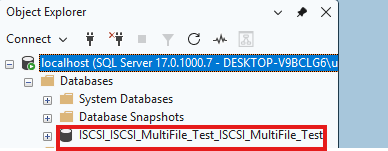
As a final manual check, open SQL Server Management Studio (SSMS) and connect to the instance. Expand Databases in the Object Explorer to confirm the attached ISCSI_ database is visible.
In this example, ISCSI_ISCSI_MultiFile_Test_ISCSI_MultiFile_Test appears under the Databases node alongside System Databases and Database Snapshots.
Phase 4 — Cleanup Clone (Clone Server)
When finished with the cloned databases, run .\ISCSI_USECASE3_UNMOUNT.ps1 on the clone server. This script detaches the databases from SQL Server, disconnects iSCSI sessions, takes disks offline, and optionally performs a full iSCSI configuration reset — making the server clean and ready for the next clone cycle.
Detect SQL Instance and Detach Databases
The script detects installed SQL Server instances from the Windows registry and prompts you to select one (or press Enter for the default localhost instance).
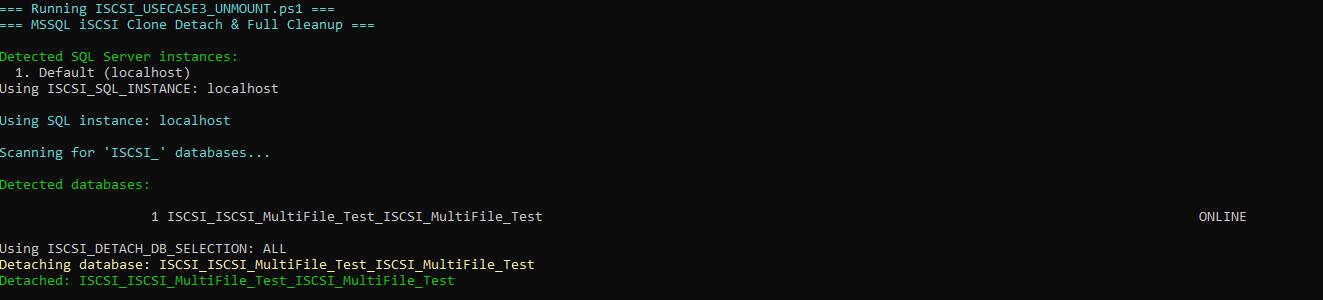
It then scans for databases whose names start with ISCSI_ — these are the databases that were mounted by ISCSI_USECASE3.PS1. If any are found, you select which ones to detach by number (comma-separated, or ALL).
For each selected database, the script runs sp_detach_db, which removes the database from the SQL instance without deleting the underlying .mdf/.ldf files on the iSCSI volume. The files remain intact on the clone LUN.
In this example, the script detects one ISCSI_ database and detaches it using the configured selection (ALL).
Note — Active connections: If applications or users are connected to the database,
sp_detach_dbwill fail. Close all connections before running this step, or set the database toSINGLE_USERmode first.Note — Only
ISCSI_prefixed databases are shown: If you attached a cloned database with a custom name (not using theISCSI_prefix), the script will not detect it. Detach it manually using SQL Server Management Studio orsqlcmd.
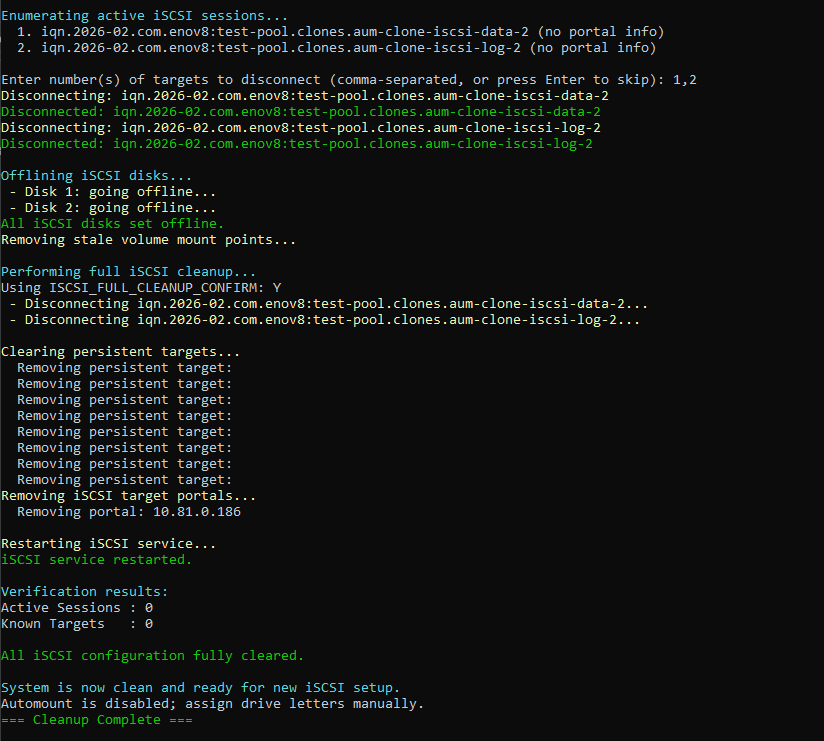
Disconnect iSCSI Sessions and Offline Disks
The script builds an IQN-to-disk-number map using WMI (MSiSCSIInitiator_SessionClass) before disconnecting any sessions — this is critical because the mapping data is lost once a session is disconnected.
It then lists all active iSCSI sessions. You select which targets to disconnect by number. In this example, two clone sessions are listed:
iqn.2026-02.com.enov8:test-pool.clones.aum-clone-iscsi-data-1iqn.2026-02.com.enov8:test-pool.clones.aum-clone-iscsi-log-1
The user enters 1,2 to disconnect both. After disconnection, the script uses the pre-built map to identify which Windows disk numbers belonged to those sessions and takes only those disks offline. Other iSCSI disks on the server (if any) are left untouched.
Important — Select the correct sessions: If you have multiple iSCSI workloads on the same server, select only the clone sessions. Disconnecting a session for a production LUN will make that storage inaccessible.
Note — Disk offline affects all volumes: If the iSCSI disk has multiple partitions or volumes, taking it offline removes access to all of them — not just the SQL database files.
Full iSCSI Configuration Reset (Optional)
After the scoped cleanup, the script offers an optional full iSCSI reset. This step is shown with prominent red warnings because it affects all iSCSI configuration on the server, not just the clone sessions.
When you confirm with Y, the script:
- Disconnects all remaining iSCSI sessions — any sessions that were not selected in Phase 2.
- Takes all remaining iSCSI disks offline.
- Removes all persistent targets (
iscsicli RemovePersistentTargets) — this clears the list of targets that Windows automatically reconnects to on boot. - Restarts the MSiSCSI service — ensures a clean state.
In this example, the user confirms Y because this is a dedicated test/clone server with no other iSCSI workloads.
Important — Full reset affects all iSCSI on this server: This step removes every persistent iSCSI target and disconnects every active session. Only choose Y if this server is dedicated to the clone workflow or if you are certain no other iSCSI workloads exist.
Note — After reboot, no iSCSI will auto-reconnect: Because all persistent targets are removed, the server will not reconnect to any iSCSI target after a reboot. This is the intended behavior — the server is "reset" and ready for a fresh
ISCSI_USECASE3.PS1run with a new clone.
Verification
The script verifies the cleanup by checking the number of active iSCSI sessions. In this example:
- Active Sessions: 0 — all sessions have been cleared.
- The system is confirmed clean and ready for a new iSCSI setup.
The message "Automount is disabled; assign drive letters manually" reminds you that Windows SAN policy may prevent new iSCSI volumes from auto-mounting. When you run ISCSI_USECASE3.PS1 next time, the script will handle drive letter assignment interactively.
Non-Interactive Config
- Copy
config.sample.jsontoconfig.json. - Edit values (vME portal IP, LUN numbers, drive letters, etc).
- Run the wrapper:
.\Run-IscsiWorkflow.ps1 -ConfigPath .\config.json
Supported phases
SourcePrep (USECASE1 + USECASE2), SourcePrepOnly, SourceMigrateOnly, CloneMount, CloneUnmount.
Config fields (summary)
phase: One phase or an array of phases to run.portal: vME iSCSI portal IP.clearOldPortals: Clear previous iSCSI portal entries before discovery.targetSelection: Target numbers to connect (e.g.,1,2).dataDiskNumber,logDiskNumber: Disk numbers for data/log LUNs during prep.dataDriveLetter,logDriveLetter: Drive letters assigned during prep.migrate: Migration options (db selection and confirmations).attach: Clone attach options (SQL instance, drive letters, auto-pair mode, db selection).unmount: Clone detach options (SQL instance, db selection, cleanup).
CHAP authentication
CHAP support is planned for vME v1.8.0 and is not yet supported.
Leave chapUser, chapPassword, and mutualChapPassword empty for now.
Example
{
  "phase": ["SourcePrep", "SourceMigrateOnly"],
  "portal": "10.0.0.10",
  "clearOldPortals": true,
  "targetSelection": "1,2",
  "dataDiskNumber": 3,
  "logDiskNumber": 4,
  "dataDriveLetter": "H",
  "logDriveLetter": "I",
  "migrate": {
    "dbIds": "ALL"
  }
}
Example configs by phase (validated against the wrapper)
SourcePrep (USECASE1 + USECASE2)
{
  "phase": "SourcePrep",
  "portal": "10.0.0.10",
  "clearOldPortals": true,
  "targetSelection": "1,2",
  "dataDiskNumber": 3,
  "logDiskNumber": 4,
  "dataDriveLetter": "H",
  "logDriveLetter": "I",
  "confirmPrep": true,
  "migrate": {
    "confirmStart": true,
    "dataDriveLetter": "H",
    "logDriveLetter": "I",
    "dbIds": "ALL",
    "confirmSelection": true,
    "execute": true
  }
}
SourcePrepOnly (USECASE1 only)
{
  "phase": "SourcePrepOnly",
  "portal": "10.0.0.10",
  "clearOldPortals": true,
  "targetSelection": "1,2",
  "dataDiskNumber": 3,
  "logDiskNumber": 4,
  "dataDriveLetter": "H",
  "logDriveLetter": "I",
  "confirmPrep": true
}
SourceMigrateOnly (USECASE2 only)
{
  "phase": "SourceMigrateOnly",
  "migrate": {
    "confirmStart": true,
    "dataDriveLetter": "H",
    "logDriveLetter": "I",
    "dbIds": "1,2,3",
    "confirmSelection": true,
    "execute": true
  }
}
CloneMount (USECASE3)
{
  "phase": "CloneMount",
  "portal": "10.0.0.10",
  "targetSelection": "3",
  "attach": {
    "sqlInstance": "localhost",
    "dataDriveLetter": "H",
    "logDriveLetter": "I",
    "autoPair": true,
    "dbSelection": "ALL",
    "skipPartitionAssign": true
  }
}
CloneUnmount (USECASE3_UNMOUNT)
{
  "phase": "CloneUnmount",
  "unmount": {
    "sqlInstance": "localhost",
    "dbSelection": "ALL",
    "disconnectTargets": "1,2",
    "fullCleanup": true
  }
}
CHAP authentication (optional)
Set chapUser and chapPassword for one-way CHAP. Add mutualChapPassword to enable mutual CHAP.
To use different credentials per target, add a targets array. The script matches each discovered target's IQN using substring matching. If no match is found, the top-level chapUser/chapPassword are used as a fallback. If neither is set, the target is connected without authentication.
mutualChapPassword is always global — Windows only supports a single initiator reverse CHAP secret system-wide. The script calls Set-IscsiChapSecret once before connecting.
{
  "chapUser": "default-user",
  "chapPassword": "default-password",
  "mutualChapPassword": "global-reverse-secret",
  "targets": [
    {
      "iqn": "iqn.2025-01.com.storage:lun-data",
      "chapUser": "user-for-data",
      "chapPassword": "secret-for-data"
    },
    {
      "iqn": "iqn.2025-01.com.storage:lun-log",
      "chapUser": "user-for-log",
      "chapPassword": "secret-for-log"
    }
  ]
}
The targets array is optional. Configs without it work exactly as before.
Example
{
  "phase": ["SourcePrep", "SourceMigrateOnly"],
  "portal": "10.0.0.10",
  "clearOldPortals": true,
  "targetSelection": "1,2",
  "dataDiskNumber": 3,
  "logDiskNumber": 4,
  "dataDriveLetter": "H",
  "logDriveLetter": "I",
  "migrate": {
    "dbIds": "ALL"
  }
}
Example configs by phase (validated against the wrapper)
SourcePrep (USECASE1 + USECASE2)
{
  "phase": "SourcePrep",
  "portal": "10.0.0.10",
  "clearOldPortals": true,
  "targetSelection": "1,2",
  "chapUser": "",
  "chapPassword": "",
  "mutualChapPassword": "",
  "targets": [

    {
      "iqn": "iqn.2025-01.com.storage:lun-data",
      "chapUser": "user-for-data",
      "chapPassword": "secret-for-data"
    },
    {
      "iqn": "iqn.2025-01.com.storage:lun-log",
      "chapUser": "user-for-log",
      "chapPassword": "secret-for-log"
    }
    ],
  "dataDiskNumber": 3,
  "logDiskNumber": 4,
  "dataDriveLetter": "H",
  "logDriveLetter": "I",
  "confirmPrep": true,
  "migrate": {
    "confirmStart": true,
    "dataDriveLetter": "H",
    "logDriveLetter": "I",
    "dbIds": "ALL",
    "confirmSelection": true,
    "execute": true
  }
}
SourcePrepOnly (USECASE1 only)
{
  "phase": "SourcePrepOnly",
  "portal": "10.0.0.10",
  "clearOldPortals": true,
  "targetSelection": "1,2",
  "chapUser": "",
  "chapPassword": "",
  "mutualChapPassword": "",
  "targets": [
    {
      "iqn": "iqn.2025-01.com.storage:lun-data",
      "chapUser": "user-for-data",
      "chapPassword": "secret-for-data"
    },
    {
      "iqn": "iqn.2025-01.com.storage:lun-log",
      "chapUser": "user-for-log",
      "chapPassword": "secret-for-log"
    }
    ],
  "dataDiskNumber": 3,
  "logDiskNumber": 4,
  "dataDriveLetter": "H",
  "logDriveLetter": "I",
  "confirmPrep": true
}
SourceMigrateOnly (USECASE2 only)
{
  "phase": "SourceMigrateOnly",
  "migrate": {
    "confirmStart": true,
    "dataDriveLetter": "H",
    "logDriveLetter": "I",
    "dbIds": "1,2,3",
    "confirmSelection": true,
    "execute": true
  }
}
CloneMount (USECASE3)
{
  "phase": "CloneMount",
  "portal": "10.0.0.10",
  "targetSelection": "3",
  "chapUser": "",
  "chapPassword": "",
  "mutualChapPassword": "",
  "targets": [
    {
      "iqn": "iqn.2025-01.com.storage:lun-data",
      "chapUser": "user-for-data",
      "chapPassword": "secret-for-data"
    },
    {
      "iqn": "iqn.2025-01.com.storage:lun-log",
      "chapUser": "user-for-log",
      "chapPassword": "secret-for-log"
    }
    ],
  "attach": {
    "sqlInstance": "localhost",
    "dataDriveLetter": "H",
    "logDriveLetter": "I",
    "dbSelection": "ALL",
    "skipPartitionAssign": true
  }
}
CloneUnmount (USECASE3_UNMOUNT)
{
  "phase": "CloneUnmount",
  "unmount": {
    "sqlInstance": "localhost",
    "dbSelection": "ALL",
    "disconnectTargets": "1,2",
    "fullCleanup": true
  }
}
Verification Checklist
After Phase 1
- iSCSI disks are online.
- Data and log LUNs are NTFS with 64K cluster size.
- Drive letters are correct.
After Phase 2
ISCSI_databases appear in SQL Server.- Database data/log files are on iSCSI drives.
- SQL Server service restarted successfully.
After Phase 3
- Databases attach cleanly.
sys.databasesshows them ONLINE.
After Phase 4
ISCSI_databases detached.- iSCSI disks offline.
- Sessions disconnected (if cleanup chosen).
Troubleshooting Notes
-
No targets discovered: Check the vME portal IP and access rules, confirm port 3260 is open, and ensure SendTargets is enabled on vME.
-
sqlcmd fails: Verify SQL Server service is running, confirm Windows auth and sysadmin access, and check that
sqlcmdis in PATH. -
Sector size mismatch: Ensure LUN sector size is compatible with SQL Server, and recreate LUNs if needed.
-
Restore file/path conflicts: Ensure target
ISCSI_database names are not already in use, and verify target data/log file paths are not already used by another database.