Hyper-V Install & Getting Started Guide
Steps to Deploy vME on Microsoft Hyper-V.
1. Import the vME Virtual Machine
- Open Hyper-V Manager from the Start menu or Server Manager.
- In the left-hand panel, select the Hyper-V host you wish to deploy vME on.
- In the right-hand Actions panel, click "Import Virtual Machine..."
2. New Virtual Machine Wizard
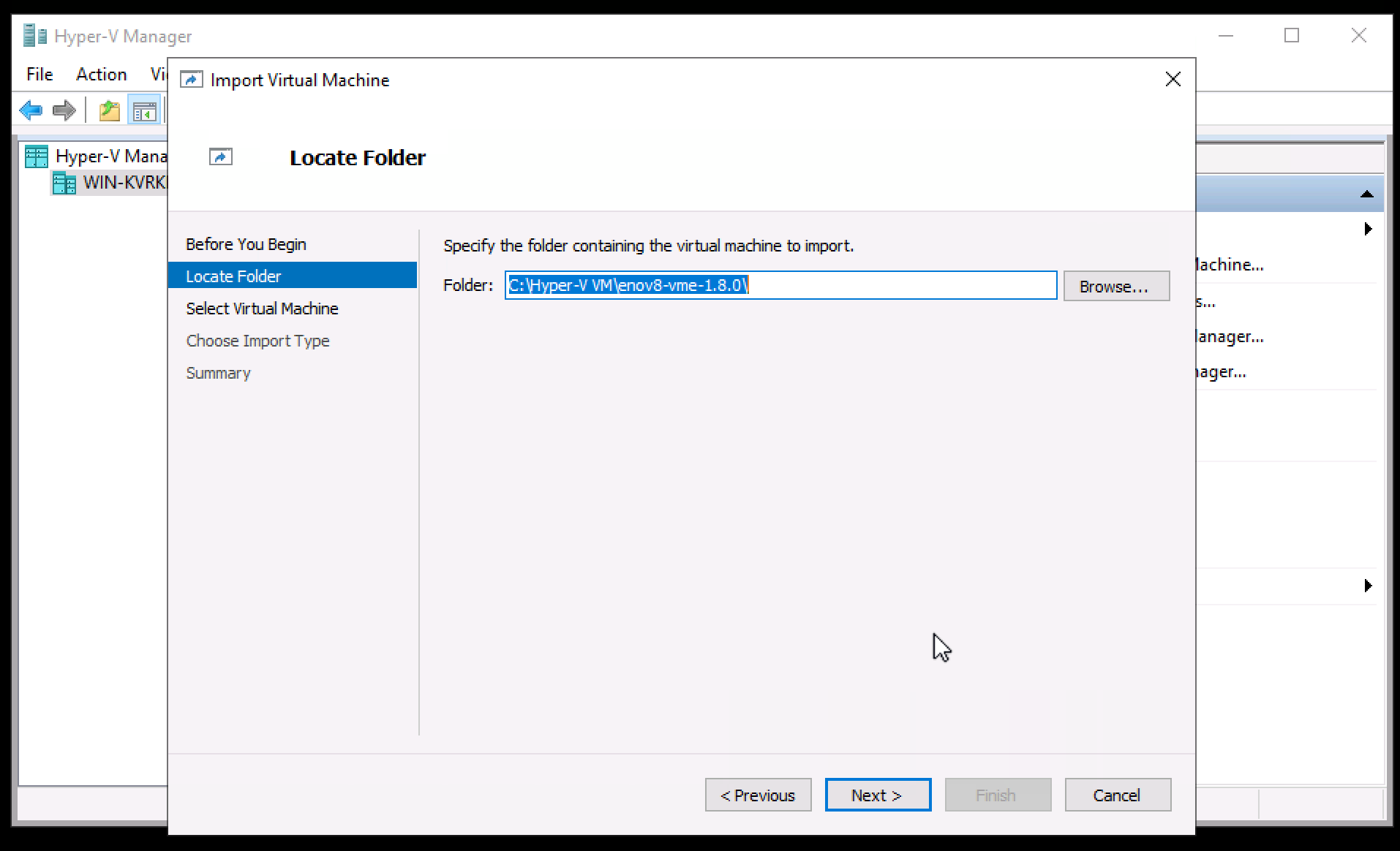
2.1 Locate Folder
- Click Browse and navigate to the folder containing the extracted vME Hyper-V VM package.
- Select the folder and click Next.
Contact your enov8 representative for the latest vME release for Hyper-V package.
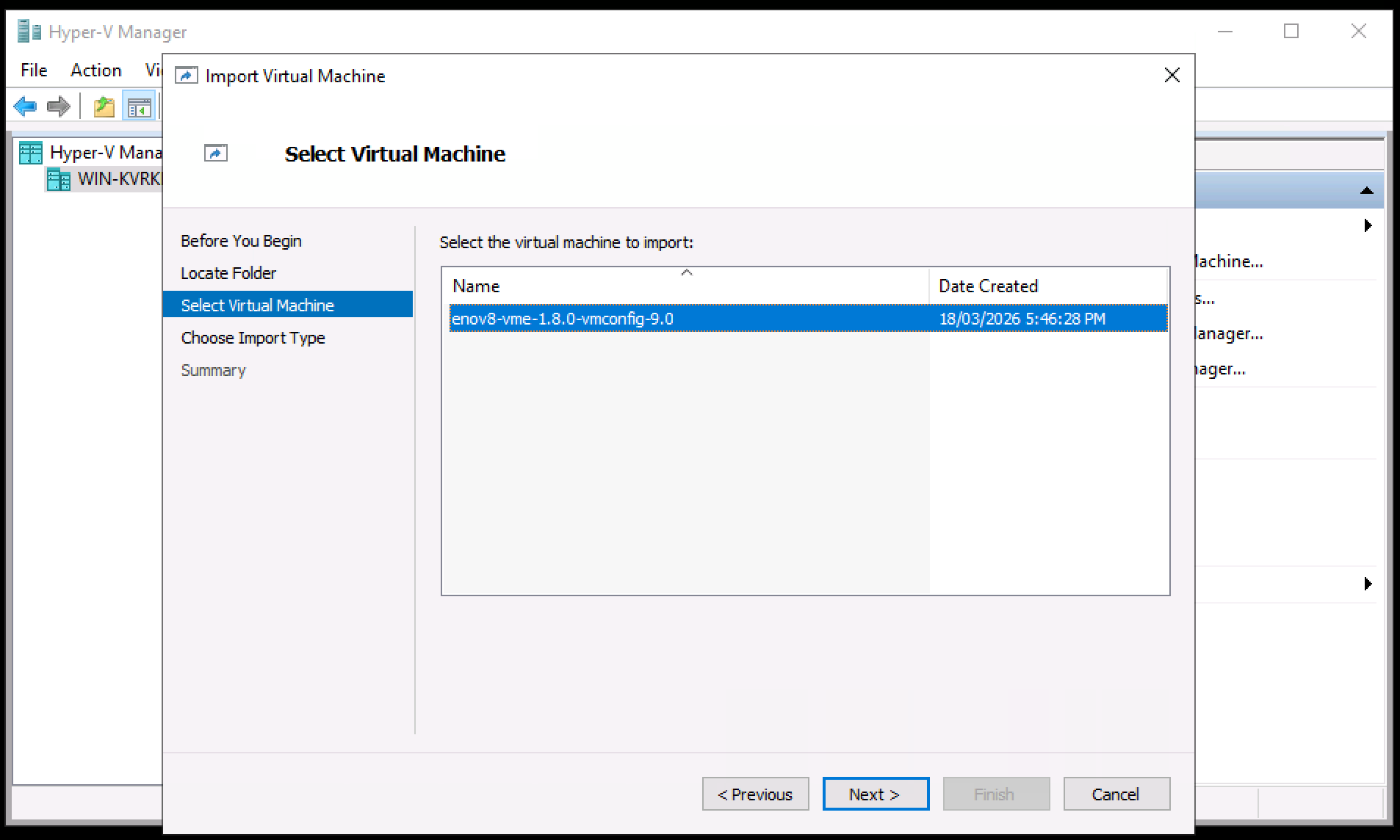
3.2 Select Virtual Machine
- The wizard will detect the vME virtual machine in the selected folder.
- Select the vME Appliance from the list and click Next.
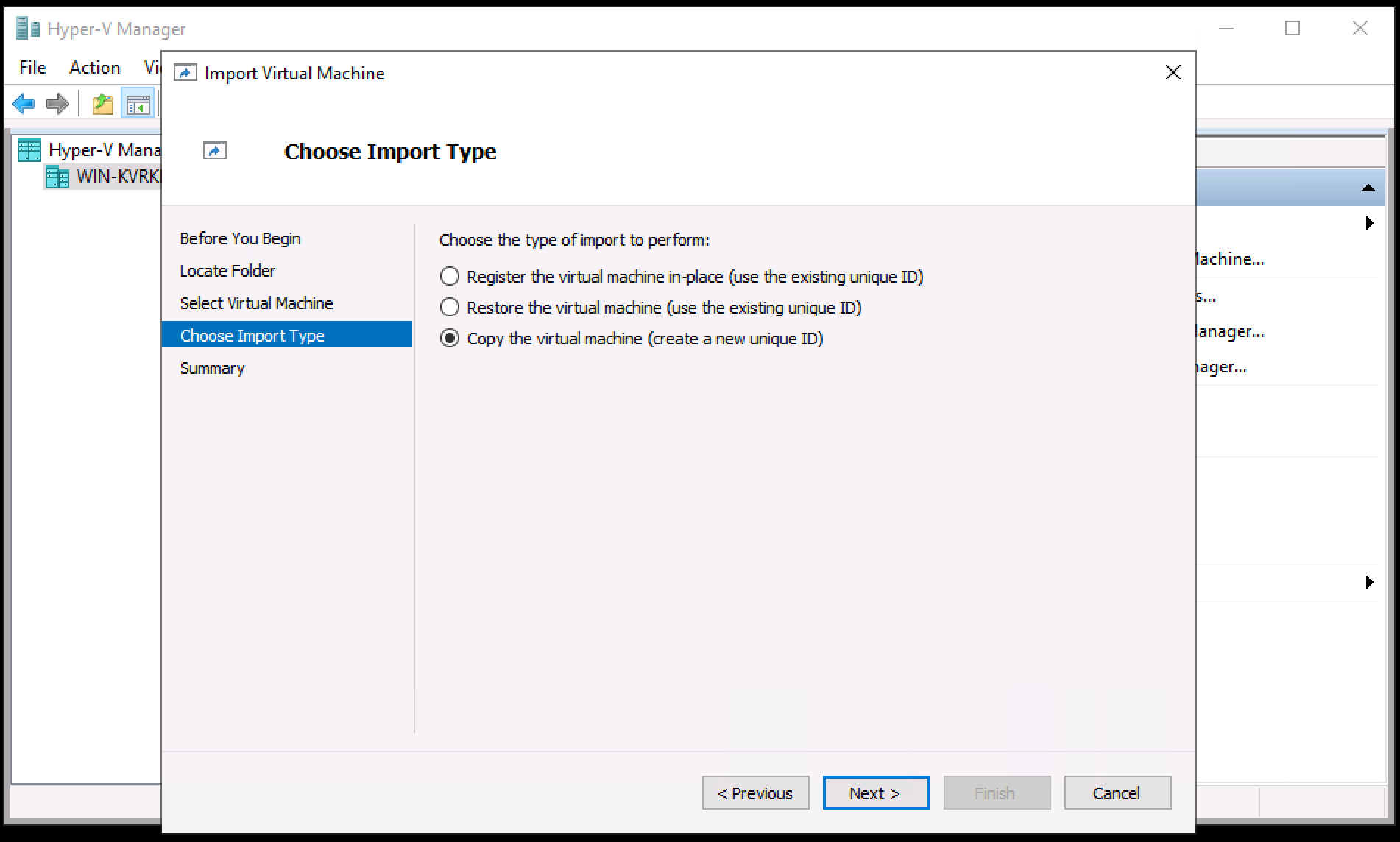
3.3 Choose Import Type
- Select "Copy the virtual machine (create a new unique ID)" and click Next.
Selecting "Copy the virtual machine" ensures a unique ID is assigned, which is required if you intend to run multiple vME instances on the same host.
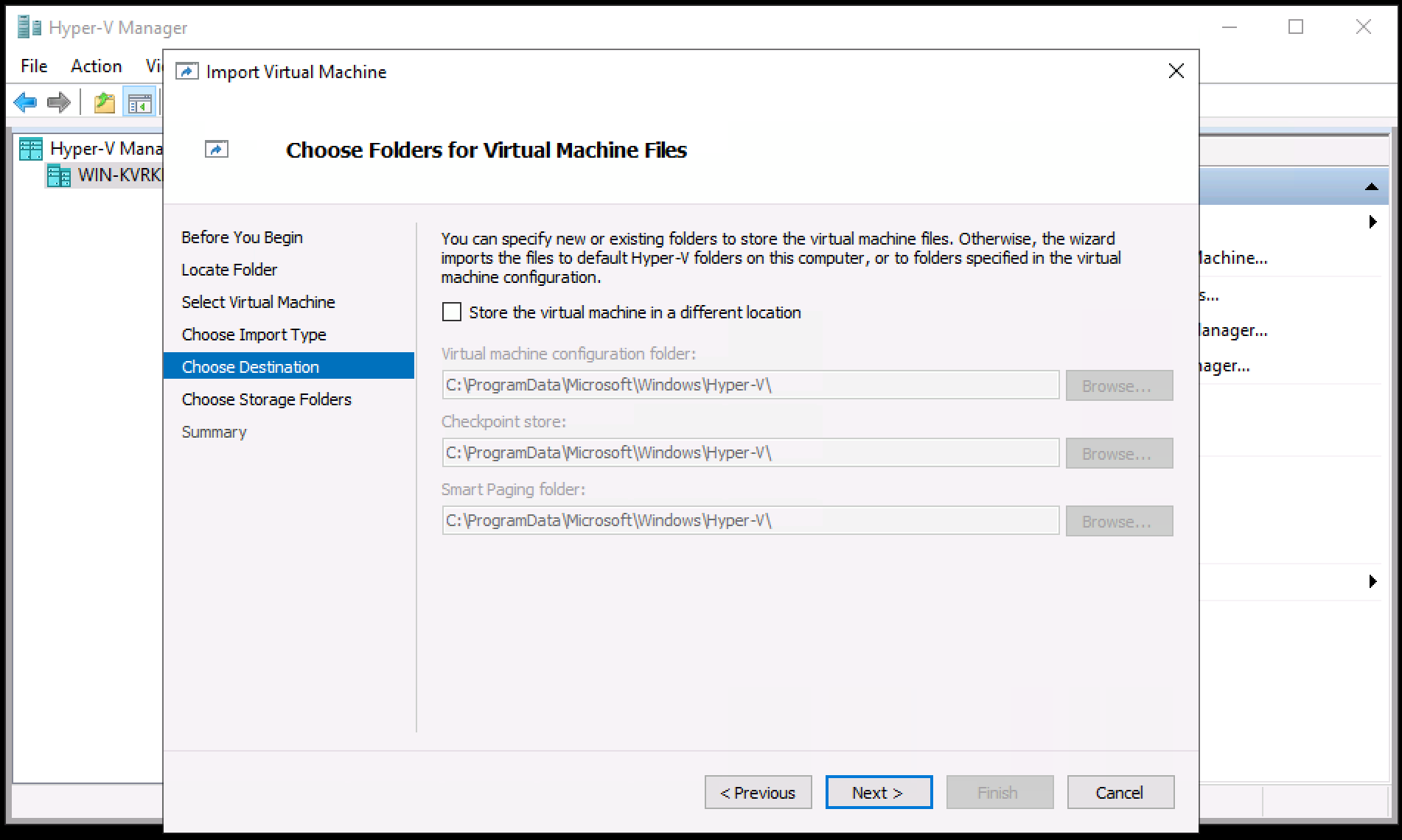
3.4 Choose Destination
- Specify the destination folders for the virtual machine files, snapshots, and smart paging.
- Accept the defaults or browse to your preferred storage location.
- Click Next.
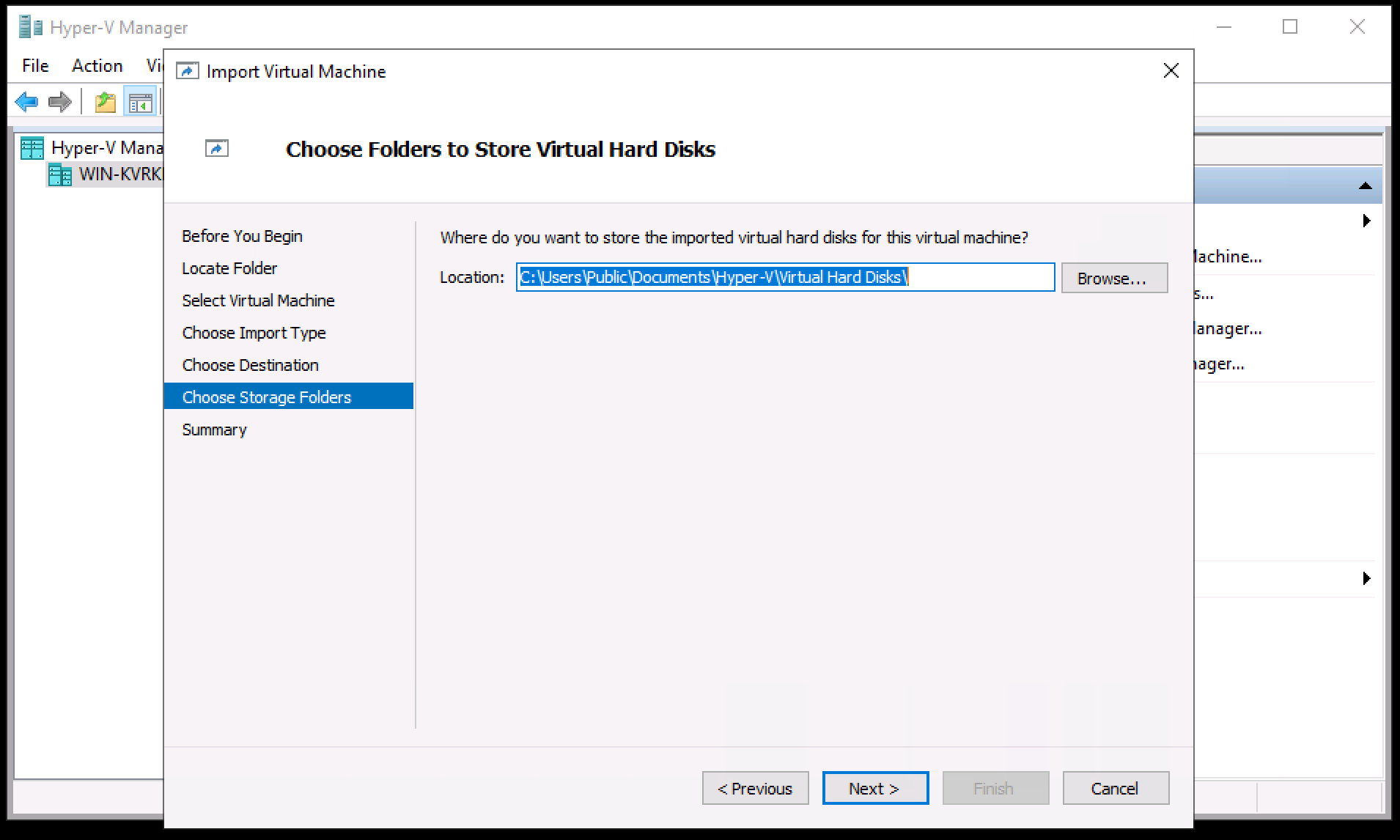
3.5 Choose Storage Folders
- Specify the folder where the virtual hard disk files will be stored.
- Click Next.
3.6 Review and Finish
- Review the summary of your import settings.
- Click Finish to start the import process.
4. Monitor Deployment
- The import process will begin. You can monitor the progress in the Status pane within Hyper-V Manager.
Do not close Hyper-V Manager until the import is complete.
Once the import tasks are completed, the vME virtual machine will appear in the Virtual Machines list.
5. Update Configuration
-
Right-click on the newly imported vME VM and click "Settings..."
-
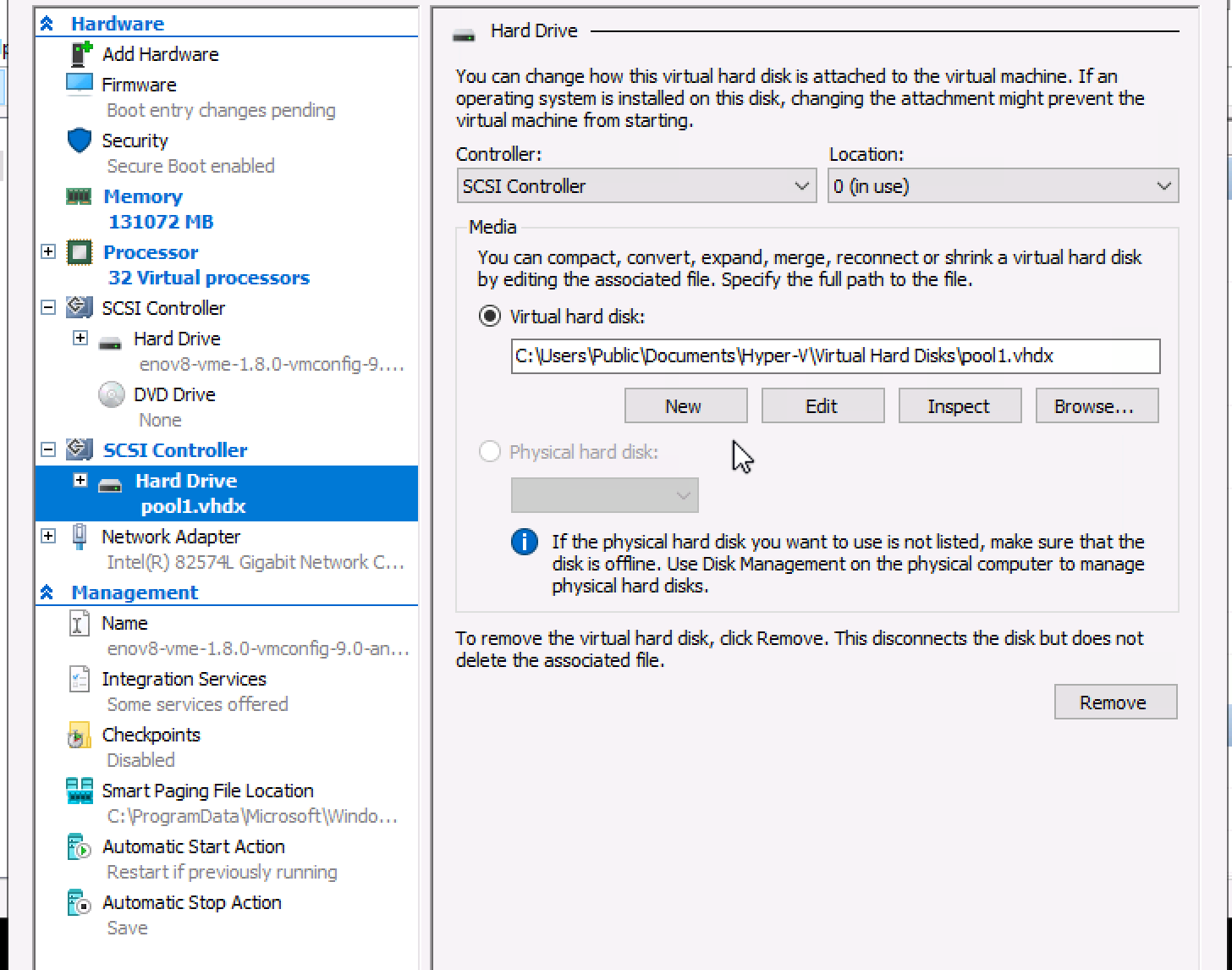
Update the VM settings to match the recommended vME requirements of 32 CPU Cores and 128 GB Memory.
- Under Processor, set the number of virtual processors to 32.
- Under Memory, set the startup RAM to 131072 MB (128 GB) and disable Dynamic Memory.
-
Click Add Hardware and select SCSI Controller, then select Hard Drive then click Add to attach a new virtual hard disk for the vME storage pool (e.g. 1024 GB).
Multiple disks can be added depending on your use case. vME can stripe multiple disks as a single or separate storage pool(s). Note: The disks must be all the same size and performance if striping under the same pool.
6. Configure Networking
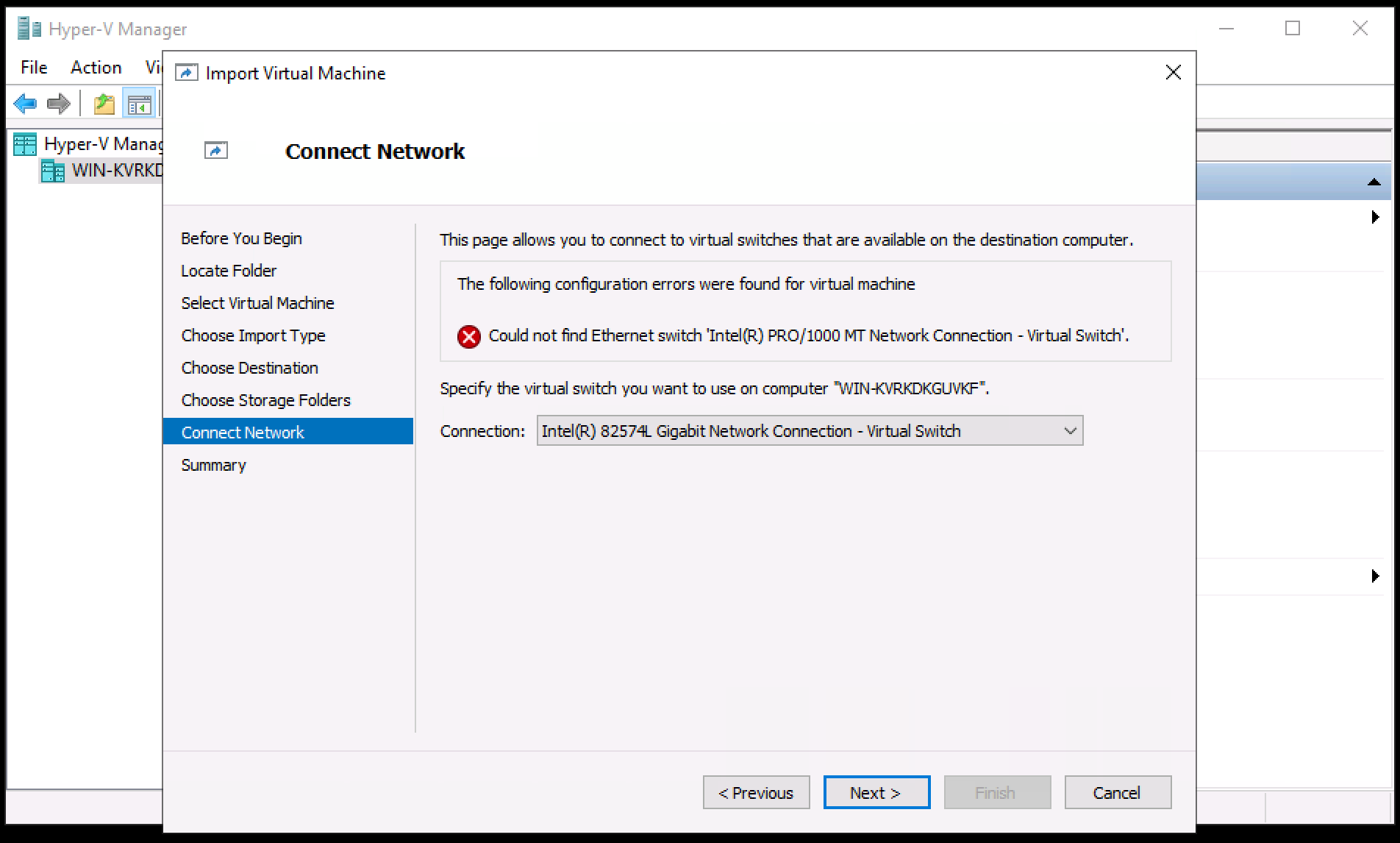
- In the VM Settings, select the Network Adapter.
- Set the Virtual Switch to the appropriate switch that provides network connectivity for vME.
- Click OK to save all settings.
Ensure the selected virtual switch has connectivity to your target database environment.
7. Power On the VM
- Once configuration is complete, right-click the vME VM in Hyper-V Manager and select "Start."
- Right-click the VM again and click "Connect..." to open the VM console.
After some time the IP address will be displayed on the VM console screen. If it does not appear, log in to the VM console and run ip addr to find the assigned IP address.
Use this IP address to navigate to the vME web frontend.
vME Initialization and Registration
Login
- Open your web browser.
- Enter the IP address or hostname of your vME appliance you just deployed. (Example:
http://192.168.69.38orhttp://vme.domain.example)
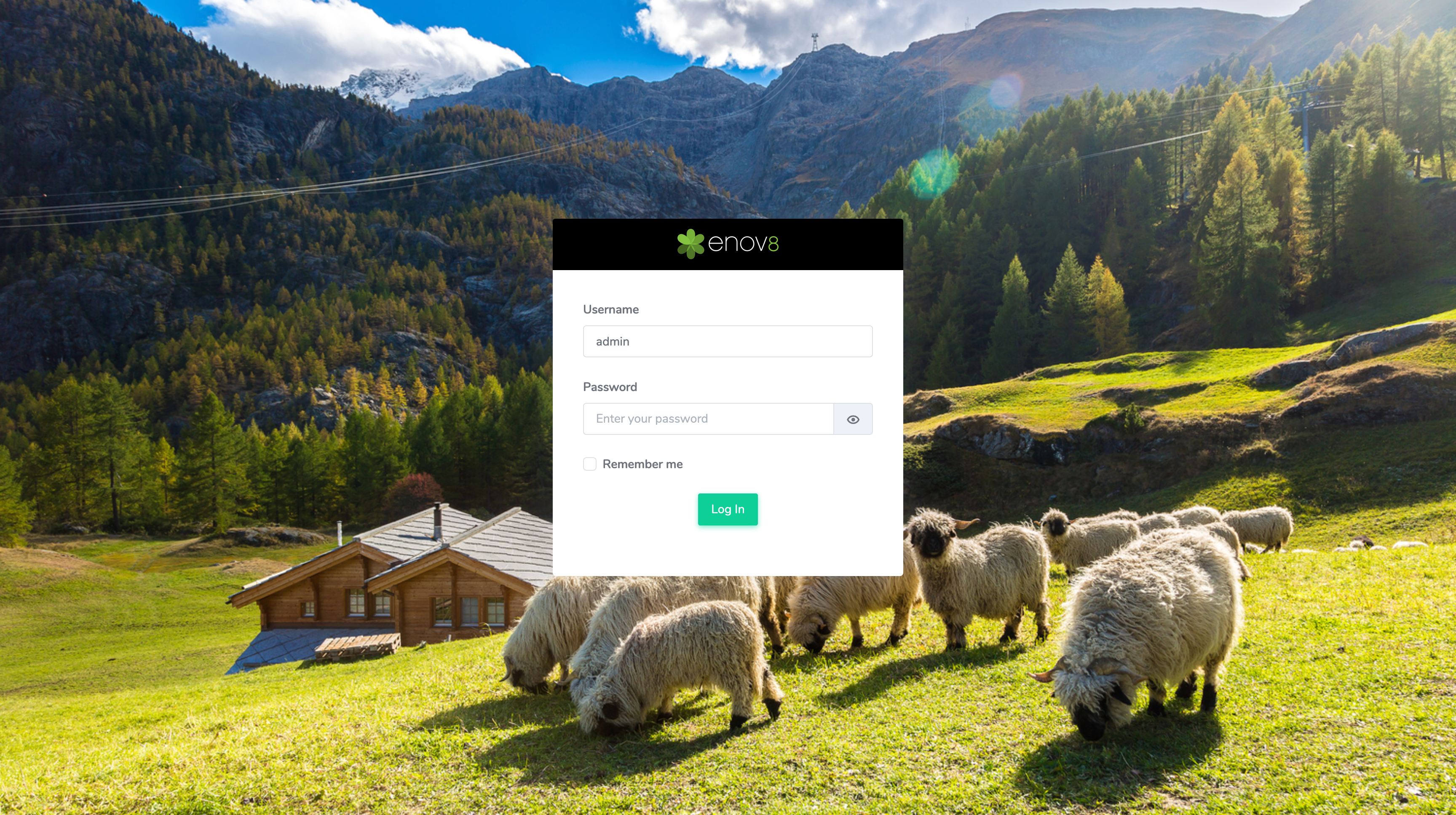
You should see the below vME login screen.
Login with the default login details
- Username: admin
- Password: admin
Licence Registration
You should now be logged in to an unlicensed vME instance.
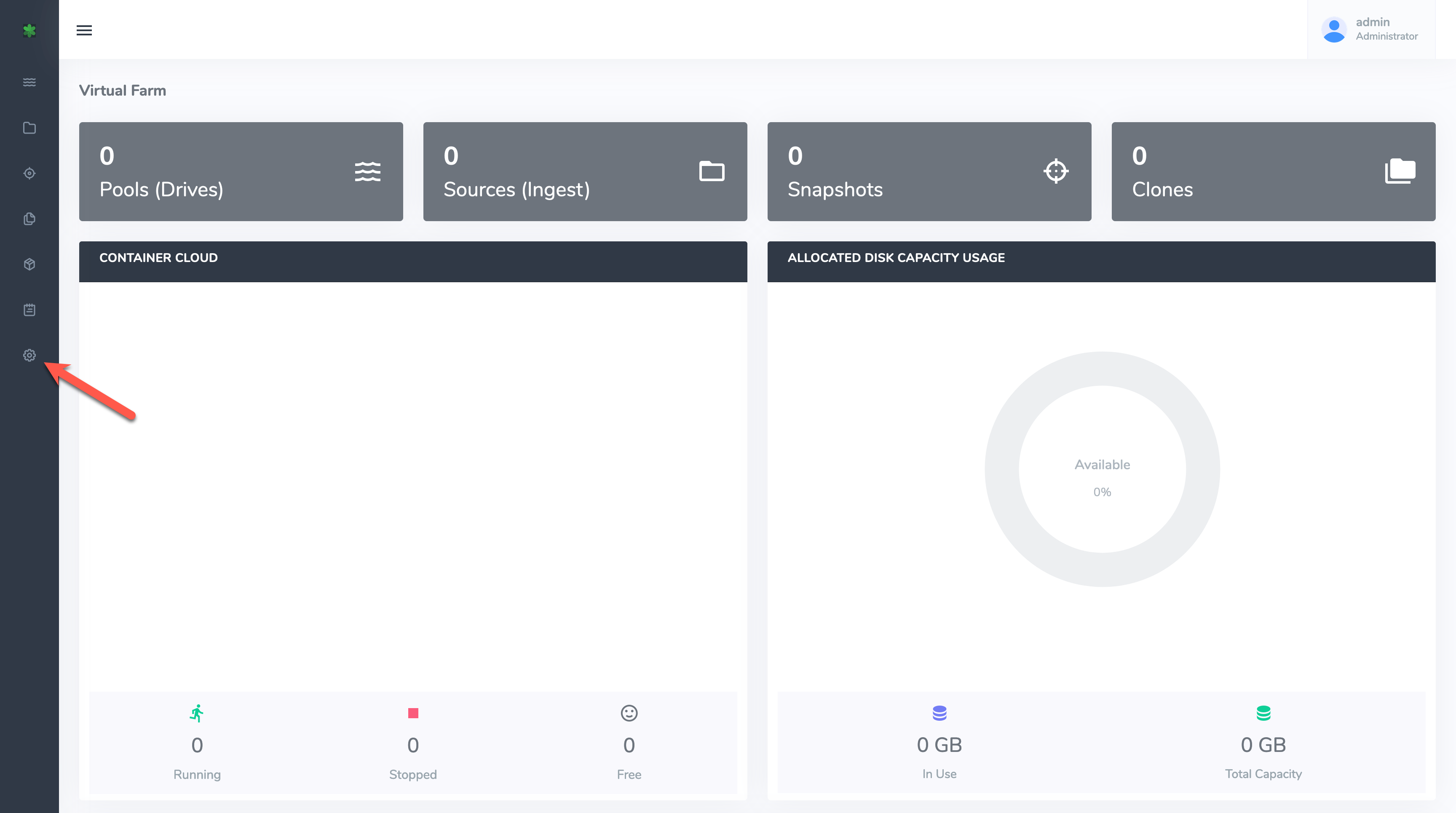
To obtain your licence registration number, navigate to the settings screen. (Bottom settings cog in nav tree).
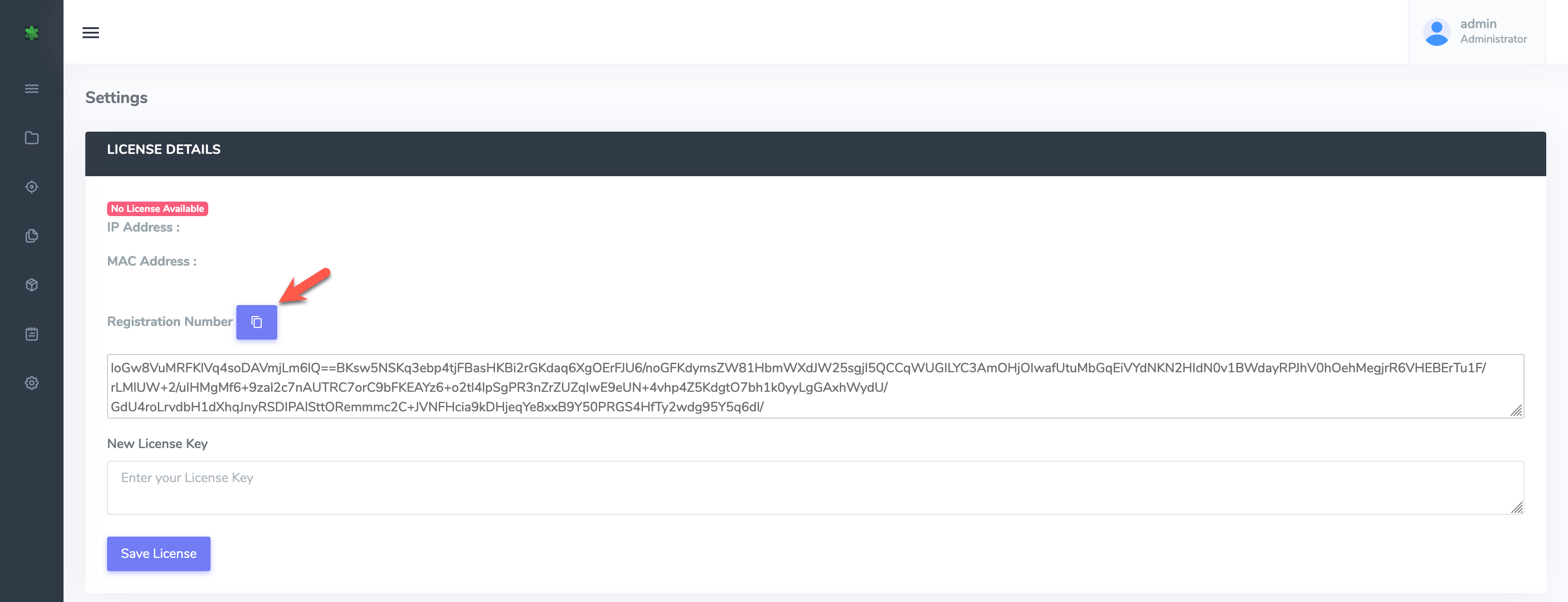
Copy the registration number and send this to your enov8 representative or raise an Enov8 Support Request (Attaching your Registration Number) to request your vME appliance licence key.
Applying Licence Key
To apply your licence key (Once received). Navigate to the settings screen.
Paste the licence key into the "New Licence Key" area and click Save Licence.

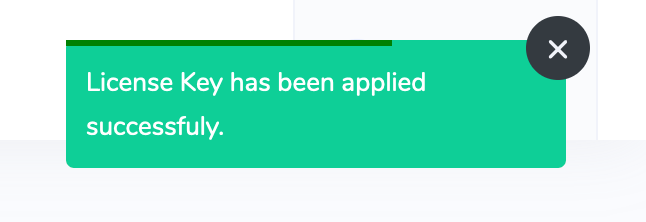
You should see a message in the top right "Licence key has been applied successfully".
You're now ready to use vME.
Changing Admin User Password
It is recommended you change the default Admin password immediately after licensing vME.
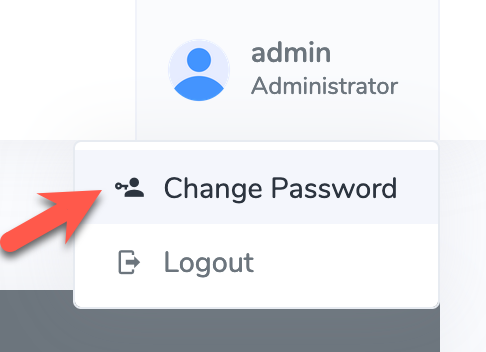
In the top right corner, click the admin user dropdown tile.
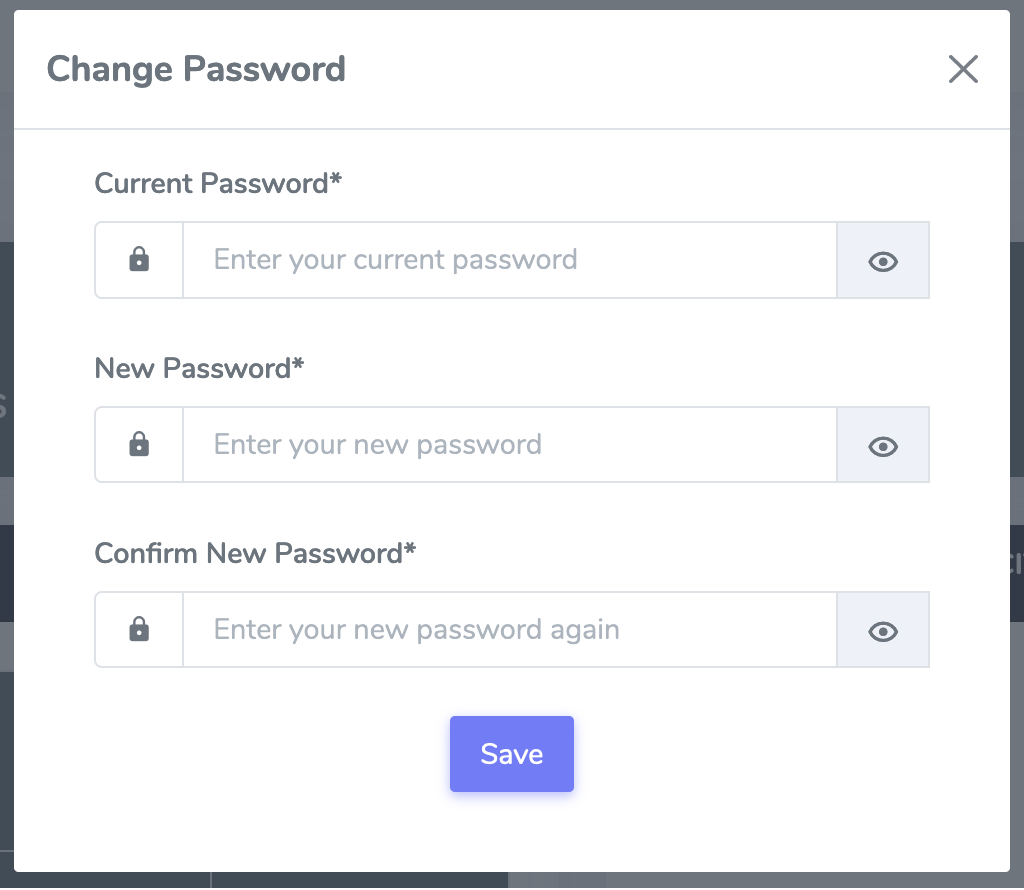
Click Change Password.
A popup window will appear, enter your old password and new password and click Save.
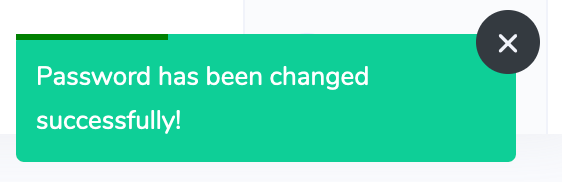
You should see a message in the top right "Password has been changed successfully".
Add First Pool
vME requires dedicated storage disk(s) to be formatted as vME Pools to ingest, snapshot and clone databases.
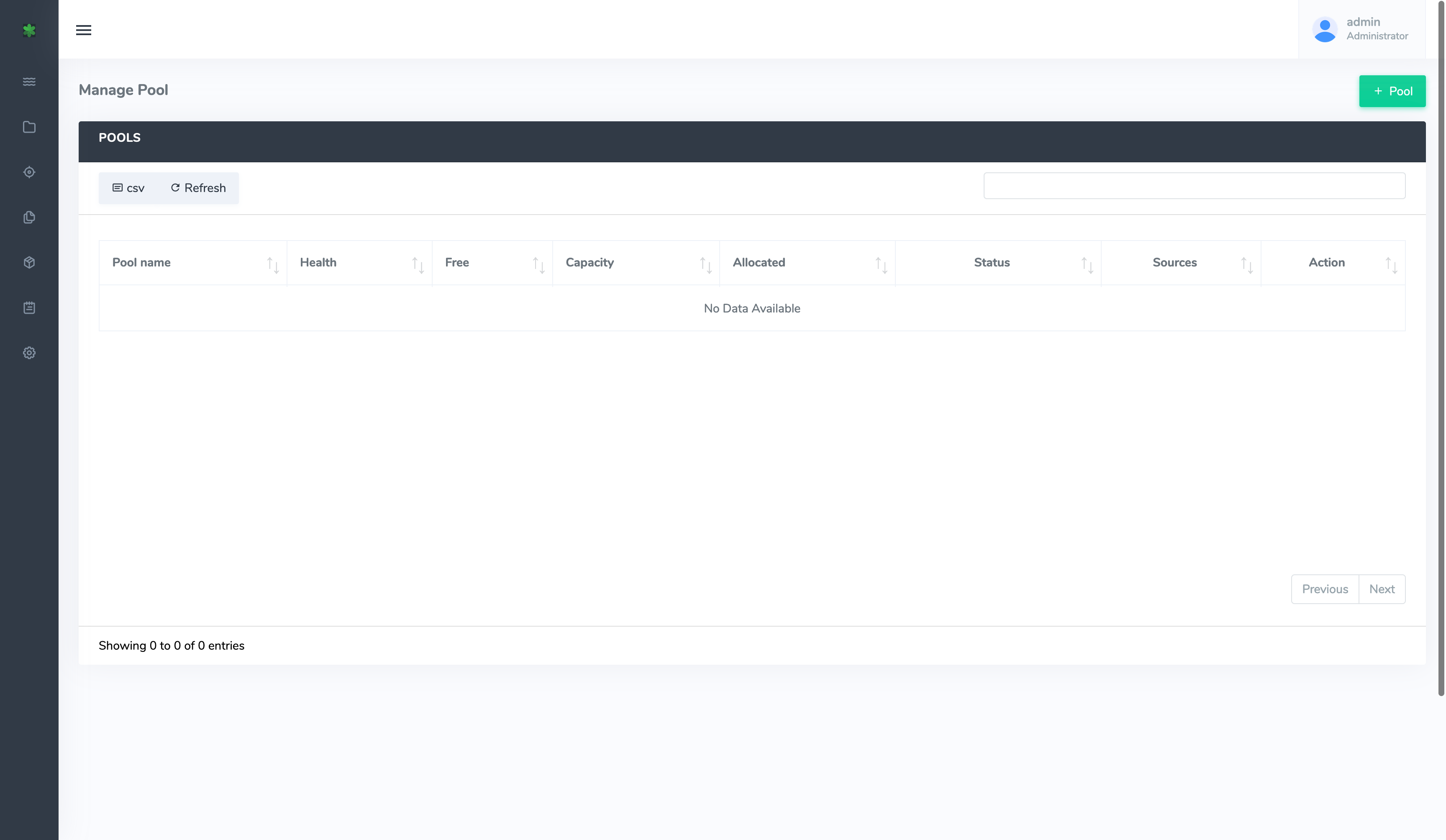
Navigate to the Pool screen of vME and click the + Pool button to add a Pool.
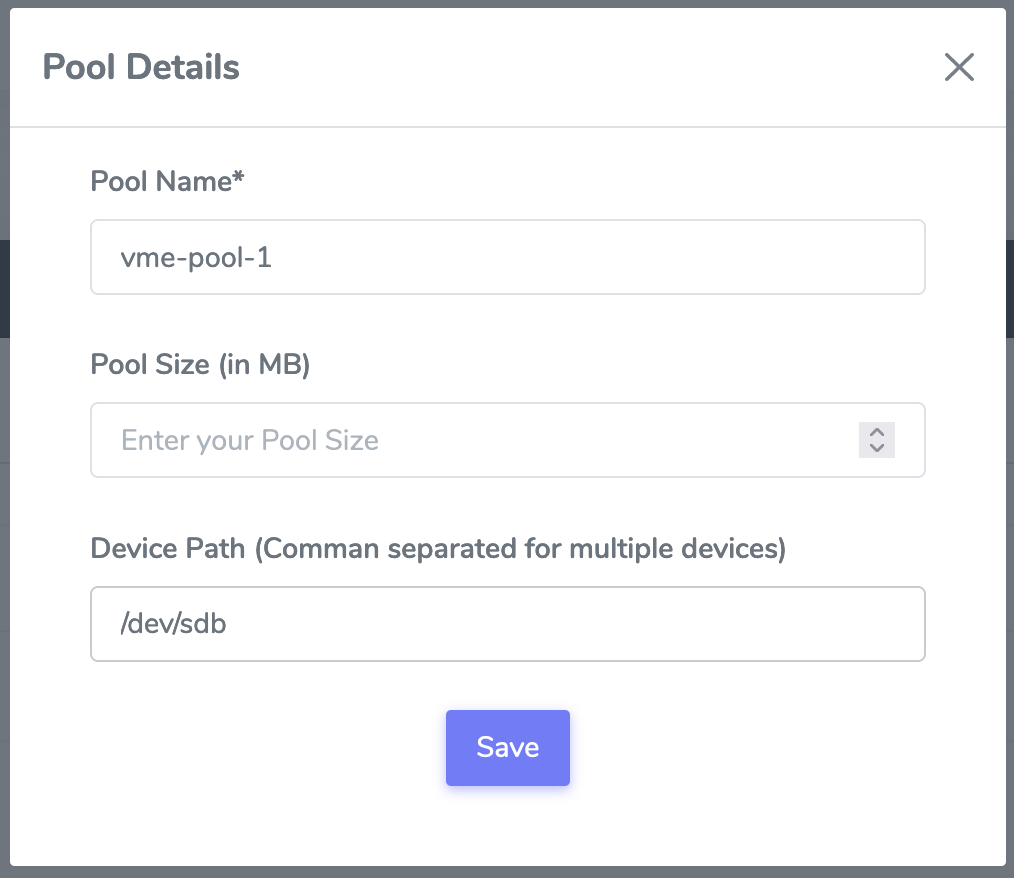
This will open the Pool Details popup.
Add a Pool Name and the Device Path of the disk(s) you added as part of step 5 of the Hyper-V deployment. (Refer next section "Determining Device Path" if unsure).
Pool Size does not need to be specified and is being phased out as an option within vME.
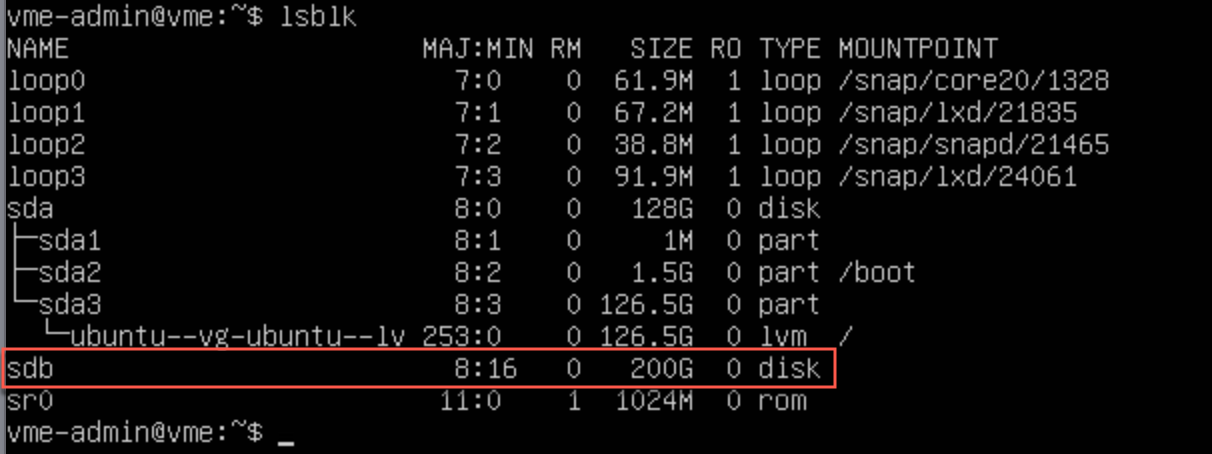
Example: If the disk name is sdb the device path would be /dev/sdb. If you have multiple disks to stripe as a Pool then separate them with a comma. e.g. /dev/sdb,/dev/sdc etc.
Click Save.
Determining Device Path
If unsure of the device path of your disks, SSH into your vME Appliance VM and run the lsblk command using a terminal application such as PuTTY or the Hyper-V VM console.
In the below screenshot example the disk name is sdb. In this example the device path would be /dev/sdb.
Pool Creation
After clicking Save on the "Pool Details" popup the below screen will show the pool creating.
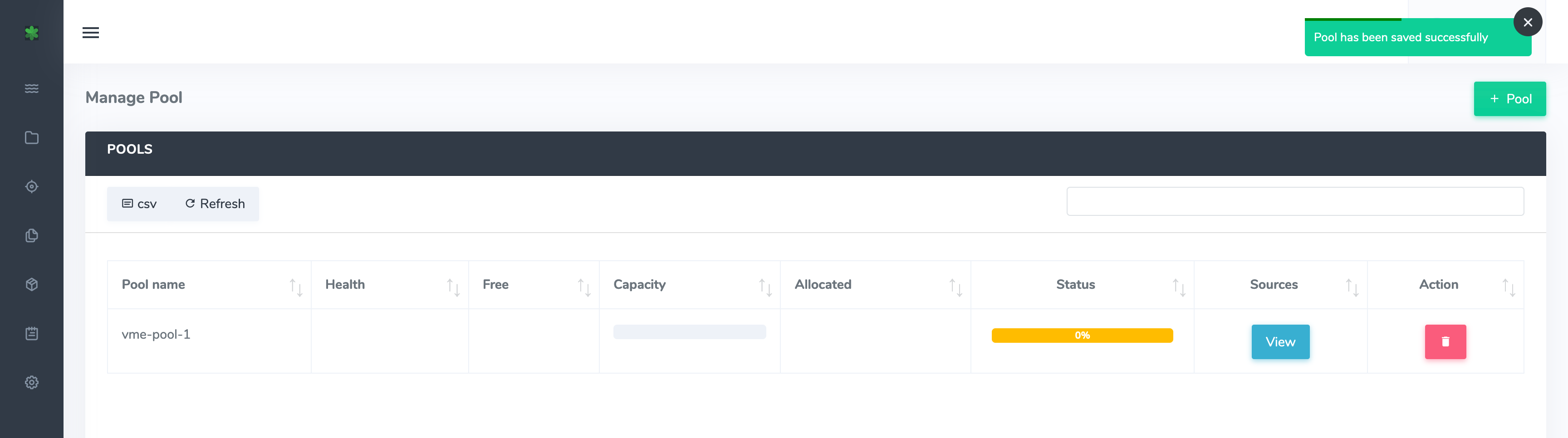
Pool creation should only take a few minutes to complete. On successful pool creation the pool will show as available.
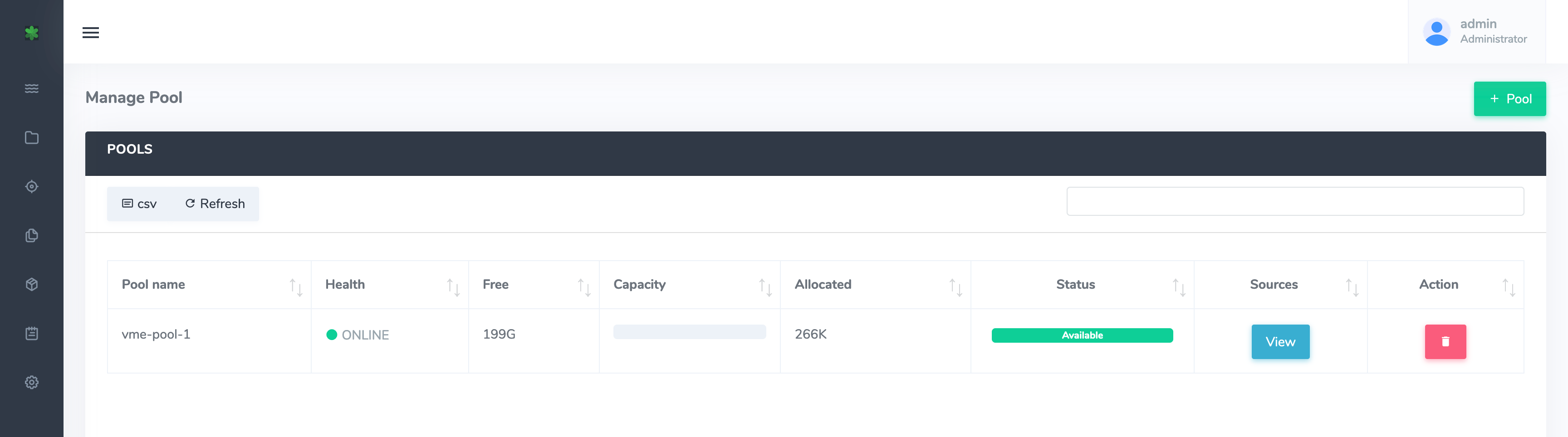
vME is now setup and ready for use. Please refer to the next sections on "Creating a Source" within the MicroWeb and API areas to ingest data.