Quick start
The Home page offers two starts: Generate test data and Prune a database.
Synthetic data, no database needed
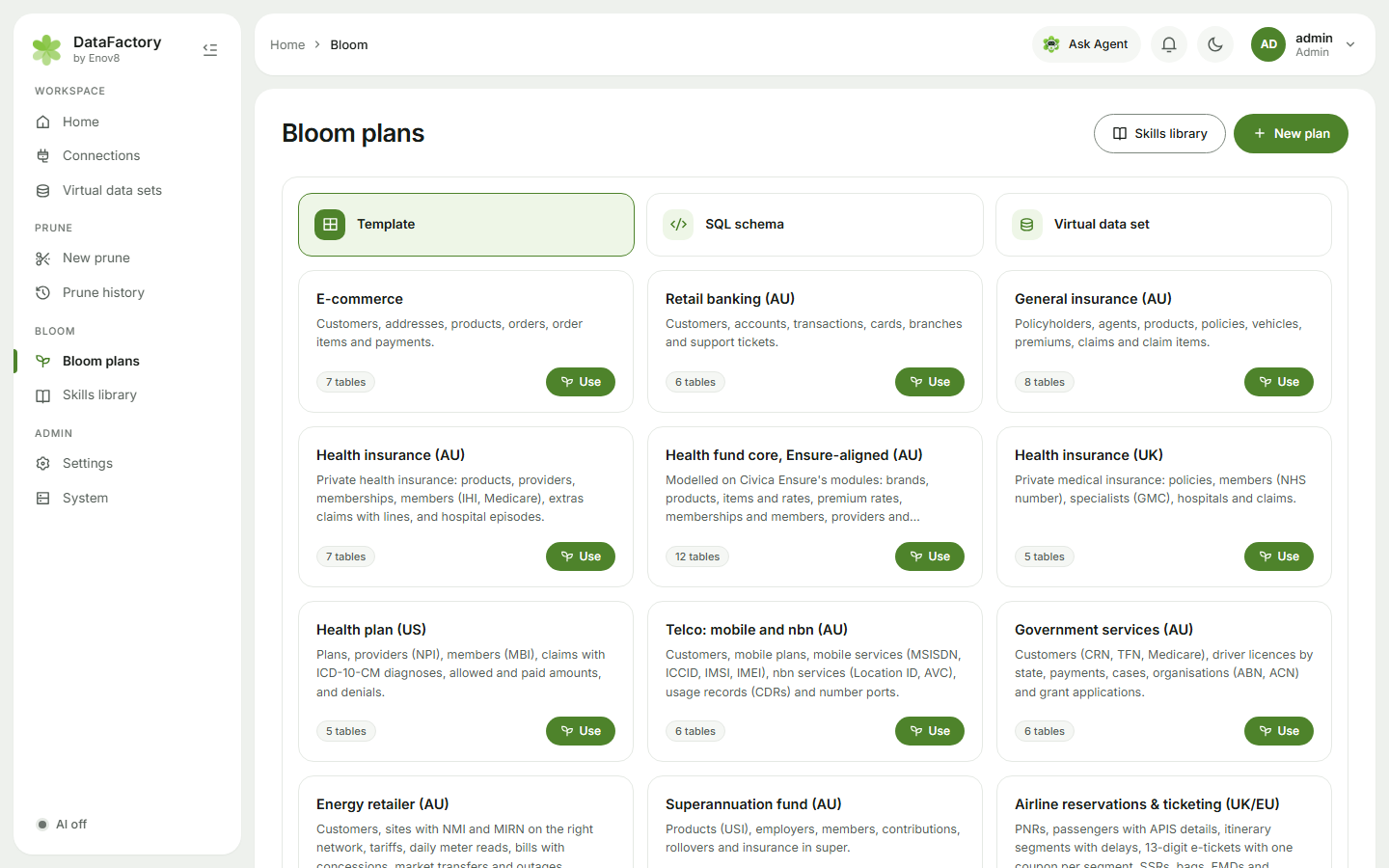
- Click Generate test data on Home, or open Bloom plans and click New plan.
- Choose the Template tile and click Use on a template, for example Retail banking (AU). The plan opens on its Generate tab, with every column given a skill and the template's rules applied.
- Click Generate.
- Check the Quality score and browse the rows, then Download CSV, Download JSON or Download SQL.
tip
Click Run again with the same Seed and you get exactly the same rows. Click New seed for a fresh set.
A small, intact subset of a real database
- Click Prune a database on Home, or open New prune.
- If you have no connection yet, add one: choose your database type, enter the details and click Save connection. DataFactory tests it as it saves, then brings you back.
- Pick one or more Starting tables: the tables your tests begin from, for example
customers. DataFactory names the data set for you; change the Name if you like. - Click Continue.
- Set Sample of starting rows (say 5%), optionally add a Row filter, and click Run prune.
- When it finishes the result opens. Click Download restore SQL for one file that creates the tables and inserts the subset.
What next
- Turn your subset into synthetic data: click Make synthetic data on the result.
- Load synthetic rows into a test database: see Load into a test database.
- You can reopen this guide any time from your account menu: Getting started.