Signing in & finding your way
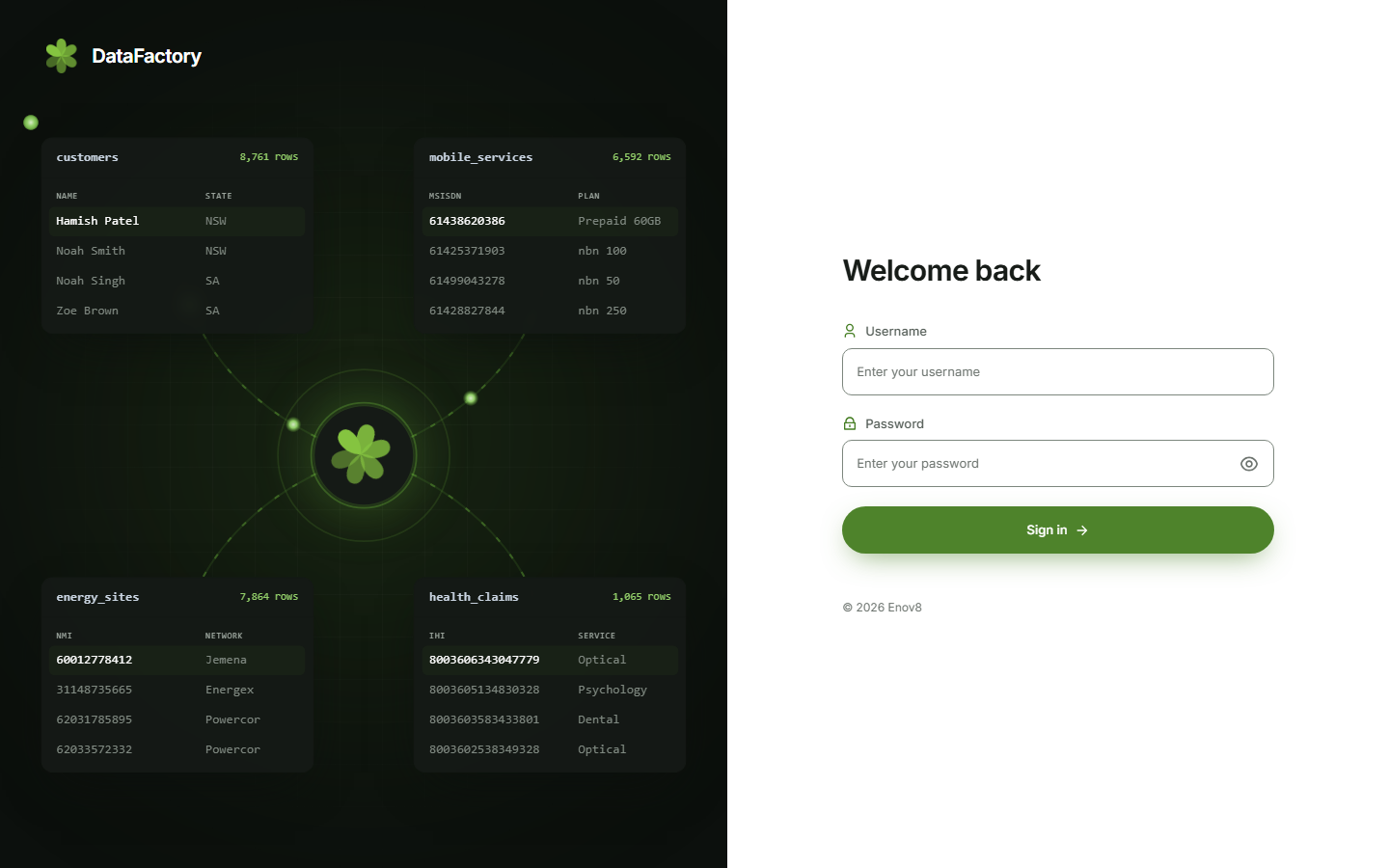
Sign in
- Single sign-on: if your organisation has it on, click Sign in with single sign-on (or your provider's button, e.g. Sign in with Microsoft).
- Password: enter your Username and Password and click Sign in. A Caps Lock is on warning appears if needed.
New accounts start with a temporary password. The first time you sign in you're asked to Choose your own password, then click Set password and continue.
On a new server the first admin may be admin / admin. It must be changed at first sign-in.
After 10 failed attempts an account is locked for 15 minutes. Ask an admin to Reset password if you're stuck.
Around the app
The left menu has four groups:
| Group | Pages |
|---|---|
| Workspace | Home, Connections, Virtual data sets |
| Prune | New prune, Prune history |
| Bloom | Bloom plans, Skills library |
| Admin (admins only) | Settings (Users, Single sign-on, AI, Packs & regions, Licence) and System |
The button at the top of the left menu collapses it. At the bottom, a pill shows whether AI is on or off.
At the top right:
- Ask Agent opens the DataFactory Agent. See AI & the agent.
- The bell shows recent prune runs.
- The sun or moon switches between light and dark.
- Your account menu has Admin settings (admins), Getting started, Change password and Log out.
Short explanations sit behind the ? buttons next to headings and settings.
A line above the page tells you if the licence is about to expire or DataFactory is read-only. See Licence.
Roles
| Member | Admin | |
|---|---|---|
| Connections, virtual data sets, prunes, Bloom plans | ✅ own | ✅ own |
| Custom skills and value lists | ✅ (change or delete only your own) | ✅ |
| Code skills (when your server allows them) | No | ✅ |
| Users, single sign-on, AI, packs & regions, licence, system | No | ✅ |
Everyone sees only their own connections, data sets and plans, plus anything someone has made Public.