Results & history
The result page
The result opens when a prune finishes. Later, open it from Prune history or Results on the data set's card.
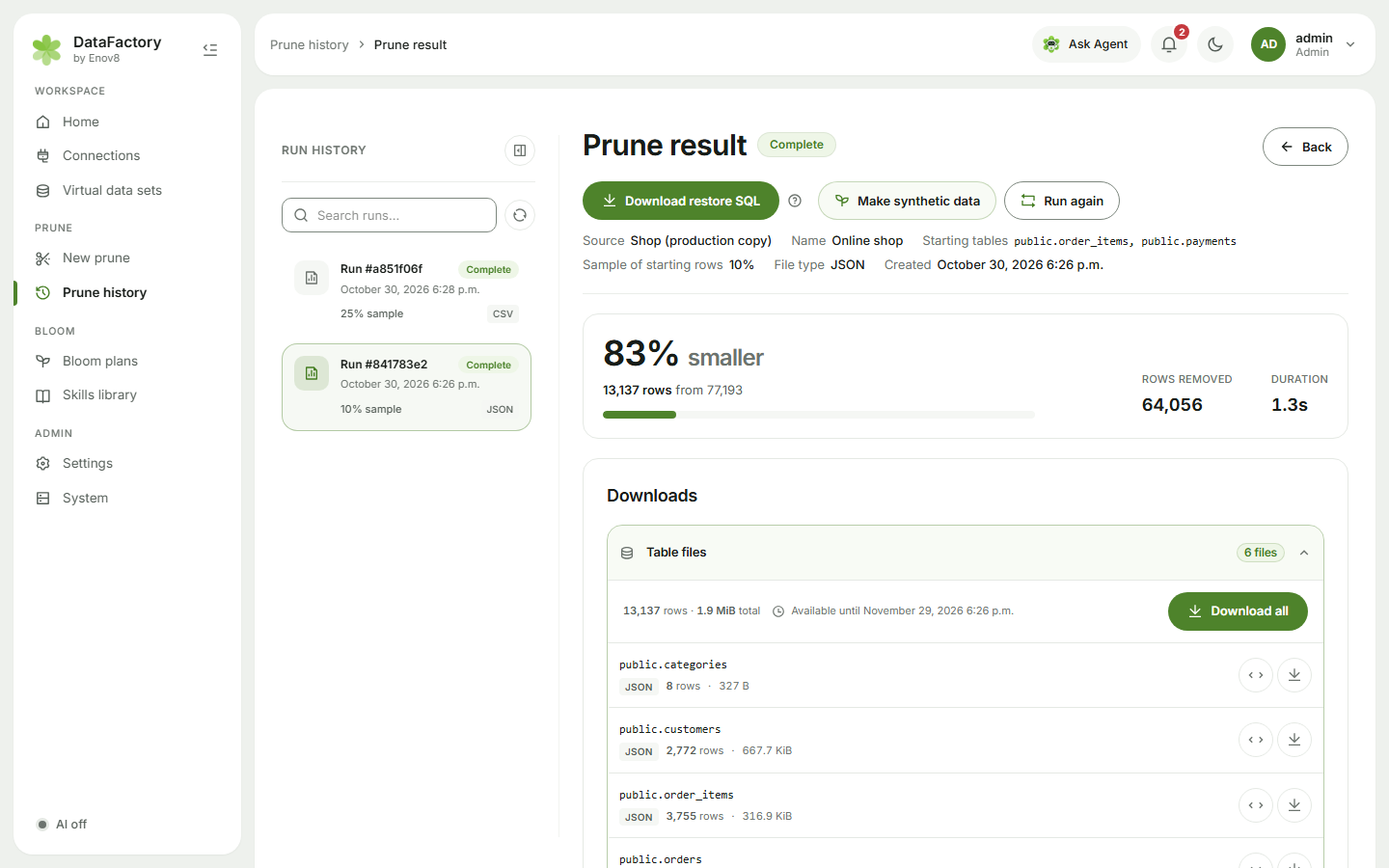
At the top: how much smaller the data is, Rows removed and Duration, and the next steps:
| Button | What it does |
|---|---|
| Download restore SQL | One SQL file, <name>_restore.sql, that creates the tables and inserts the subset. Run it against a test database. |
| Make synthetic data | Start a Bloom plan from this data set. |
| Run again | Run the prune again with these settings. |
Downloads
| Tab | Contents |
|---|---|
| Table files | The subset: one CSV or JSON file per table. |
| Restore SQL | The restore script, with a preview. |
Each has Download all (ZIP) and a preview per file.
Summary shows the per-table row counts. Details holds the settings used, the relationship preview and the Delete script.
Delete script: run it on a copy only
The delete script removes every row the prune didn't keep. Run it only on a cloned or restored copy of the source, never on the source itself. (Cloning with VirtualizeMe makes this quick.)
Files are kept for 30 days by default. Only the data set's owner and the person who ran the prune can download them.
Prune history
Prune history lists every run, with search by prune ID and a status filter.