Virtual data sets
A virtual data set (VDS) is a saved definition of which part of a database you care about. You pick one or more starting tables; DataFactory follows the relationships from them to find every related table. Prune and Bloom both start from a VDS.
Create one
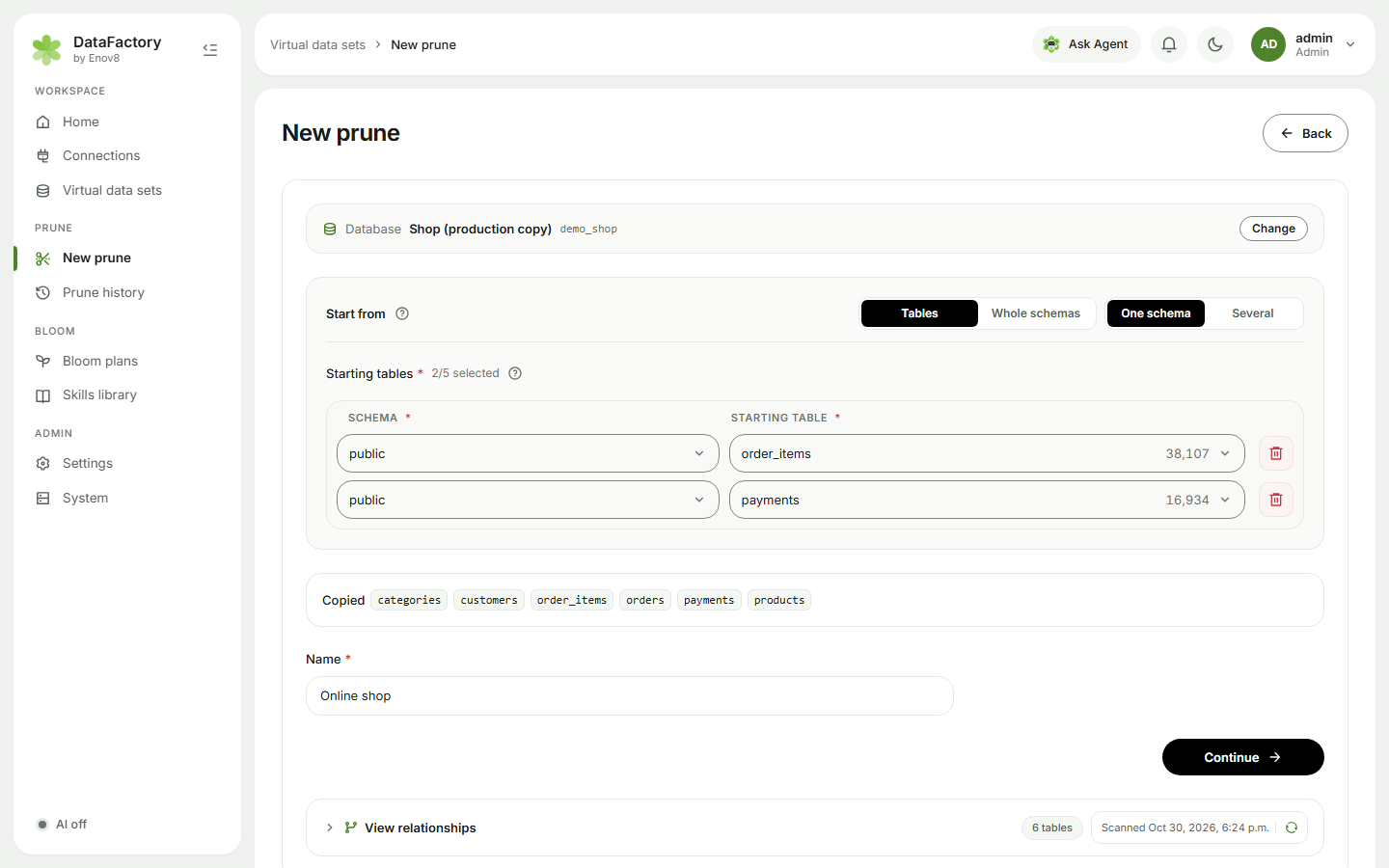
Open New prune (or click Prune a database on Home).
- Check the Database. Click Change to use another connection.
- Under Start from, choose Tables.
- Pick up to five Starting tables, usually the main business entity, such as
customersorpolicies. The tables they link to appear under Copied. Anything left out appears under Not included, where Add as starting table brings it in. - Check the Name (it defaults to the table names, e.g. customers subset).
- Optionally open View relationships to see how the tables link.
- Click Continue. The VDS is saved and Run prune opens.
Whole schemas
Under Start from, choose Whole schemas, then One schema or Several, and tick the schemas. Every table in them is included, plus any tables they link to in other schemas. DataFactory picks the starting tables for you (the tables nothing else leads to), so prunes work the same way.
When you build a Bloom plan from a whole-schema VDS, Rebuild from VDS reads the schemas again, so tables added since are picked up.
Whole schemas isn't offered for MySQL and MariaDB, where a connection is a single schema.
When the database is down
You can still open your data sets while their source database is offline. DataFactory keeps the last successful scan of each connection, so relationships, schema and table lists, prune results and history open straight away. The Scanned … date shows how old the saved scan is.
If you refresh and the database can't be reached, you'll see Refresh failed. Showing the last scan, and nothing is lost. Running a prune needs the database to be back online.
Renaming a connection or changing its password keeps the saved scan. Changing the host, port, database, user or database type starts afresh.
The Virtual data sets page
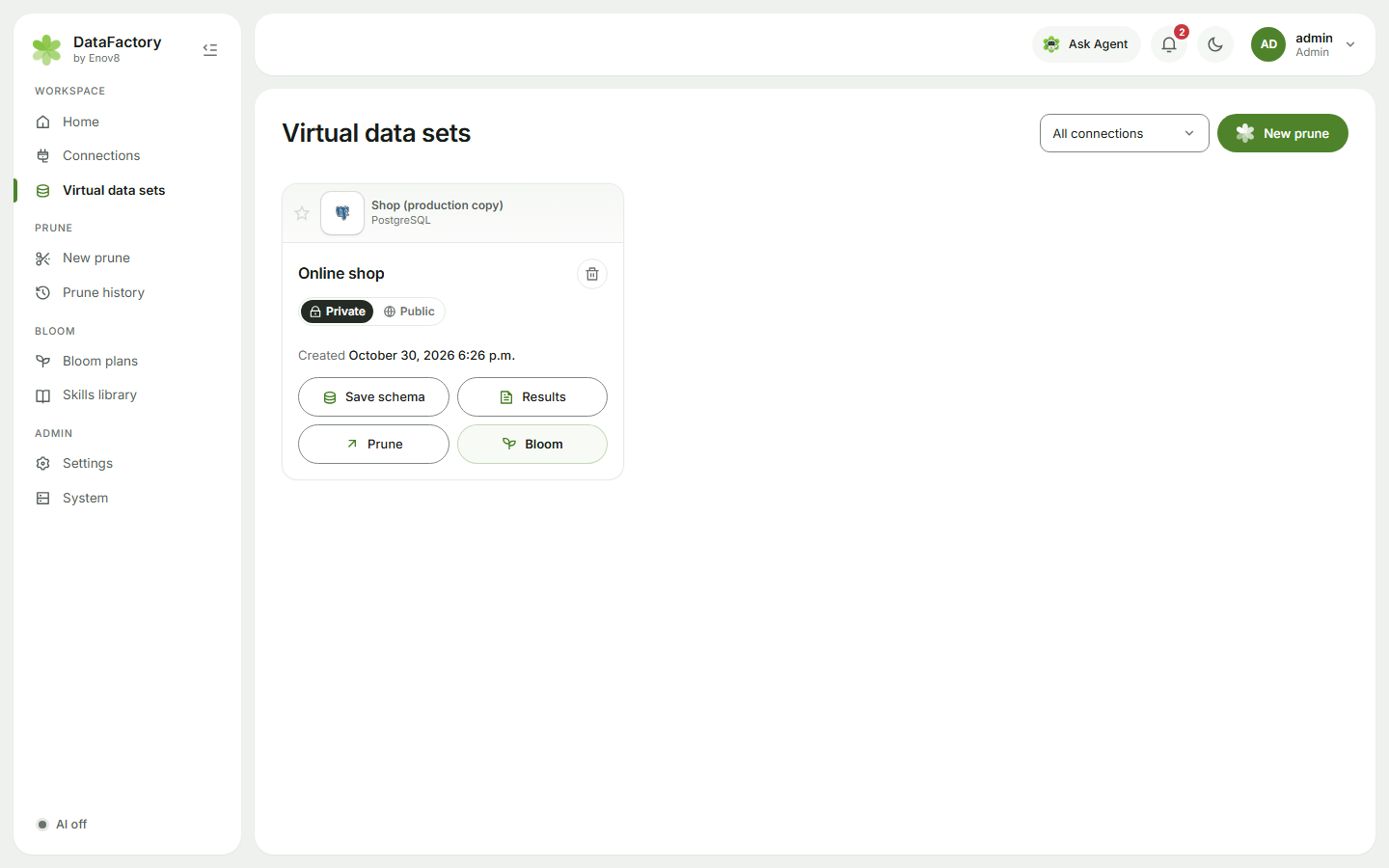
Virtual data sets lists your data sets across every connection; pick one in the connection filter to narrow it down. New prune starts another.
| Button on each card | What it does |
|---|---|
| Prune | Make a subset. See Run a prune. |
| Bloom | Make synthetic data from it. See Create a plan. |
| Results | Open the latest prune result. |
| Save schema | Export just these tables' DDL. See Export a schema. |
| Bin icon | Remove the VDS. The source database is untouched. |
Sharing
New data sets are Private. Switch one to Public to share it:
- View only: others can see it and its results.
- Others can run: others can also prune it and build Bloom plans from it, using your saved connection.