First boot and sign-in
This guide follows on from the Hyper-V install guide or the VMware install guide. It takes you from the first boot to a licensed DataFactory, then covers the appliance console menu.
Prerequisites
| Item | Detail |
|---|---|
| Appliance deployed | Hyper-V virtual machine or VMware OVA, with its data disk attached and its network adapter on your network |
| Browser | One that can reach the appliance on port 443 (port 80 redirects to it) |
| Web sign-in | admin / admin. You choose a new password at the first sign-in. |
| Licence | The licence text from Enov8: one line starting with DFL1. |
First boot walkthrough
1. Wait for the first boot to finish
Open the VM console. The first boot sets up DataFactory and takes a few minutes. While it runs, the console says Setting up for the first time. When it's done, the console shows the web address and the sign-in:
Data Factory 1.3.1
  Web       https://10.0.0.25/
  Sign in as admin / admin

During the first boot, the blank data disk is formatted and mounted at /var/lib/datafactory. Only a disk with no partitions and no file system is ever formatted. Every appliance also generates its own secrets and its own self-signed certificate.
If the VM has no blank second disk, DataFactory keeps its data on the OS disk and the console shows No data disk. See Troubleshooting.
2. Open the web address
- Browse to the Web address shown on the console, for example
https://10.0.0.25/. - Your browser warns about the certificate. This is expected until you install your own (step 7). Continue to the site.
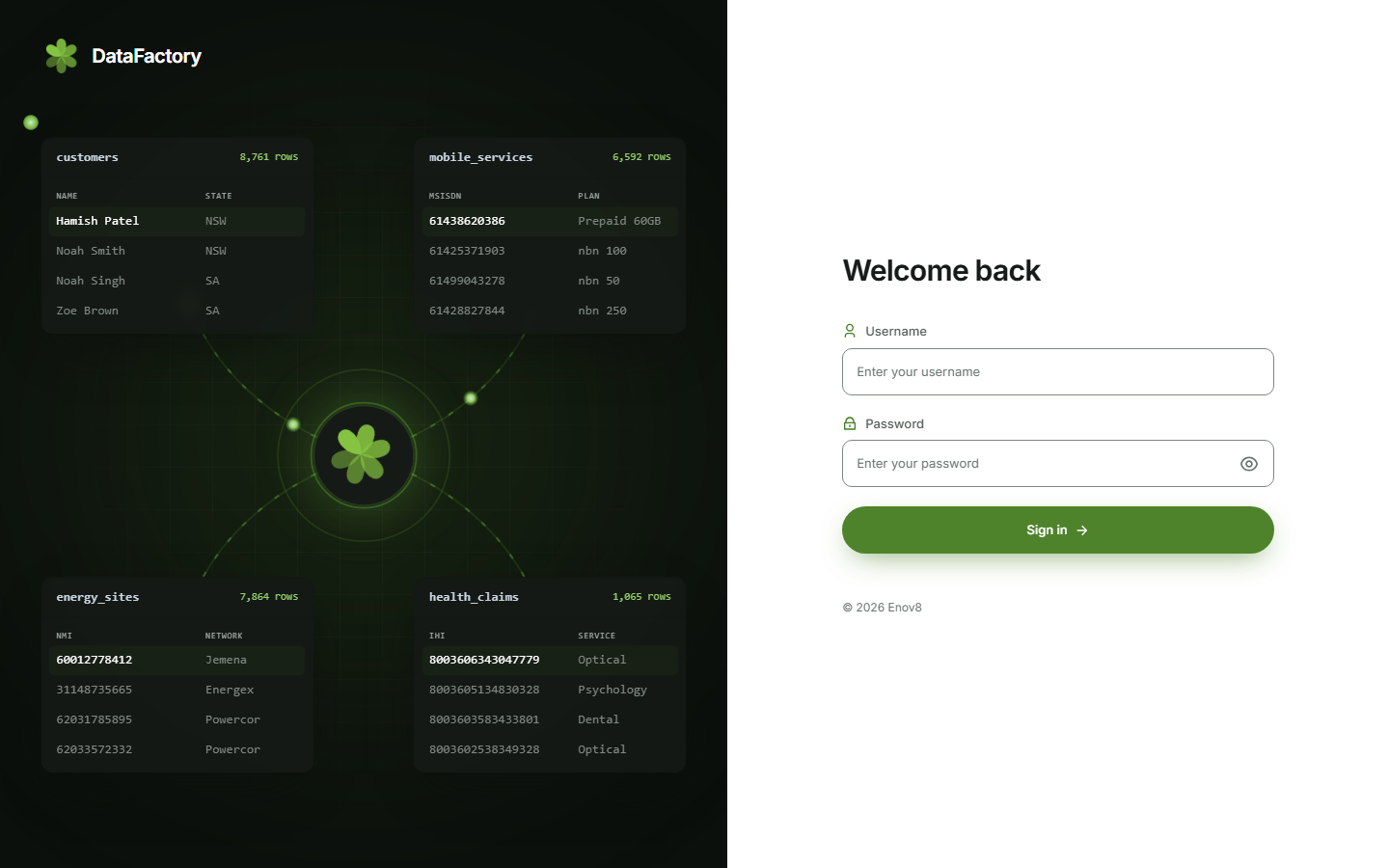
3. Sign in
- Sign in as
adminwith the passwordadmin.
4. Choose a new password
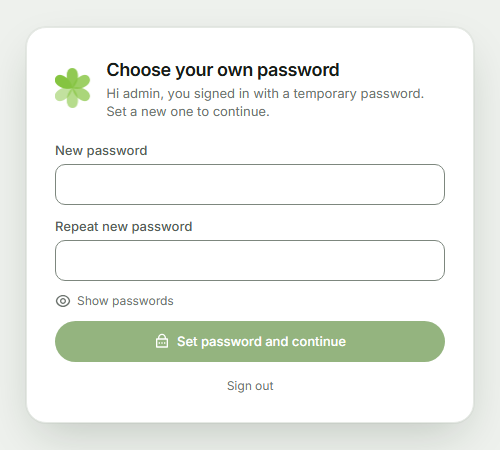
- DataFactory asks you to choose a new password straight away. Enter it and save.
- Keep it safe: it is the administrator password for DataFactory.
5. Install the licence
Until a licence is installed, DataFactory is read-only: you can sign in and browse, but not start jobs.
- The first time an admin signs in without a licence, the Licence page opens by itself. Otherwise go to Admin → Settings → Licence.
- Paste the licence text from Enov8 and click Install. It takes effect within a minute.
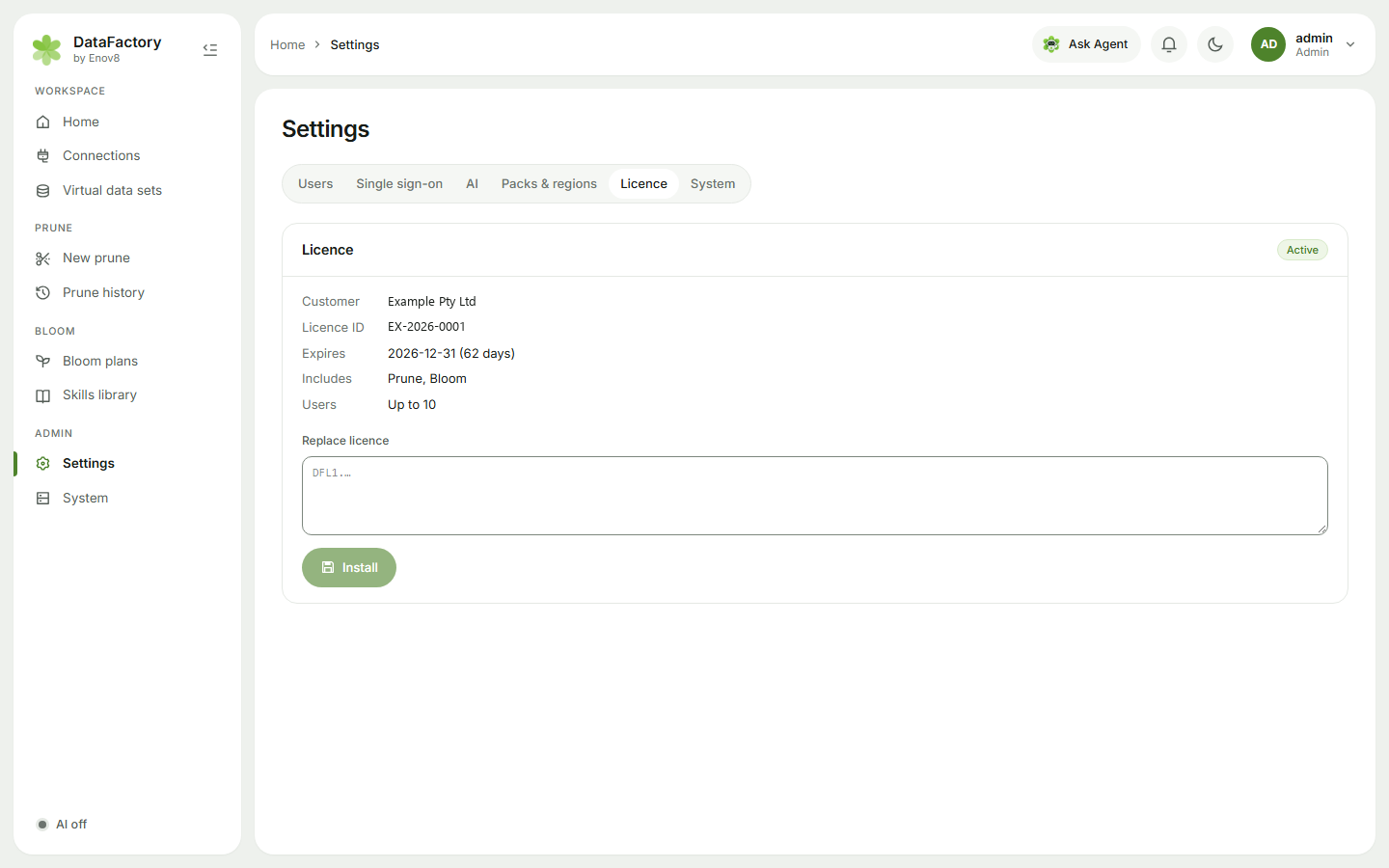
See Licence for renewals and what happens near expiry.
6. Check every service is healthy
- Open Admin → System and check every service is healthy. See System and diagnostics.
The appliance console menu
You don't need the console for normal use: everything day to day is in Admin → System. Use the console menu when the web app doesn't open, or to change the network or time.
Sign in to the console
- Open the VM console and sign in as
df-adminwith the passworddatafactory. - Choose a new password straight away. Enter the current password (
datafactory), then your new password twice. Keep it safe: it is the administrator password for this machine.
The menu opens. Its header shows the web address. Use the arrow keys to move, Enter to select and Exit to leave.

Menu items
| Item | Use it to |
|---|---|
| Status | See whether every service is healthy |
| Restart Data Factory | Restart every service. Running jobs stop, and the web app is back in about a minute. |
| Restart a service | Restart one service |
| Create diagnostics pack | Write a pack for support. See below. |
| Reset admin password | Set a one-time password for the DataFactory admin. It's shown once, everyone is signed out, and admin must choose a new password at the next sign-in. |
| Network | Set DHCP, or a fixed address (with its prefix, such as 192.168.1.20/24), gateway and DNS servers |
| Time | Check the clock, set the time server, or go back to the default time server |
| Reboot | Restart the VM |
| Shut down | Power off the VM |
Diagnostics pack from the console
Select Create diagnostics pack. The menu shows the file name: send it to Enov8 support, who will help you collect the file. The pack contains no passwords, keys or table data. When the web app is working, create packs from Admin → System instead.
Where to go next
- Add your team in Admin → Settings → Users. See Users, and optionally set up single sign-on.
- Connect a database. See Add a connection.
- Check health, read logs and restart services in Admin → System.
- Start using DataFactory. See the Quick start.
Checklist
- The VM has two disks and a network adapter on your network.
- The console shows the Web address after the first boot.
- Signed in as
admin/adminand chose a new password. - Changed the
df-adminpassword. - Licence installed.
- Admin → System shows every service healthy, and again after restarting the VM.
Troubleshooting
| Symptom | What to do |
|---|---|
| The console says First-boot set-up failed | Fix the cause (often too little memory or disk) and restart the VM: the set-up runs again. If it fails again, contact Enov8 support. |
| No address after Web | The network adapter isn't connected, or no DHCP server answered. Check the VM's network settings, or set a static address with Network in the console menu. |
| The browser warns about the certificate | The appliance uses a self-signed certificate. To use your own, contact Enov8 support. |
| The web app doesn't open | In the console menu choose Status, then Restart Data Factory if a service is unhealthy. |
| Forgot the DataFactory admin password | In the console menu choose Reset admin password. |
| "Read-only" banner in DataFactory | Licence missing or expired. See step 5. |
| The console says No data disk | The VM had no blank second disk at first boot, so data is on the OS disk. Contact Enov8 support to move it to a data disk. |
| DataFactory doesn't start after the data disk was removed or changed | It won't start without its data disk, so it never starts with an empty database. Reattach the disk and restart the VM. |
For anything else, open Admin → System → Create diagnostics pack, then Download, and attach the file to your ticket with Enov8 support. If the web app doesn't open, create the pack from the console menu.
Related documentation
- Hyper-V install guide: import the virtual machine into Hyper-V
- VMware install guide: deploy the OVA on ESXi or vSphere
- Install options: every way to host DataFactory
- System and diagnostics: service health, logs and diagnostics packs